WireGuard client · Mac · iPhone · iPad

WireGuard for people who manage multiple networks.

Bring your existing WireGuard connections together on Mac, iPhone and iPad.

Free on the App Store. Advanced networking on one connection you choose; the others still connect. How Free works

Already using WireGuard? Keep your existing configurations.

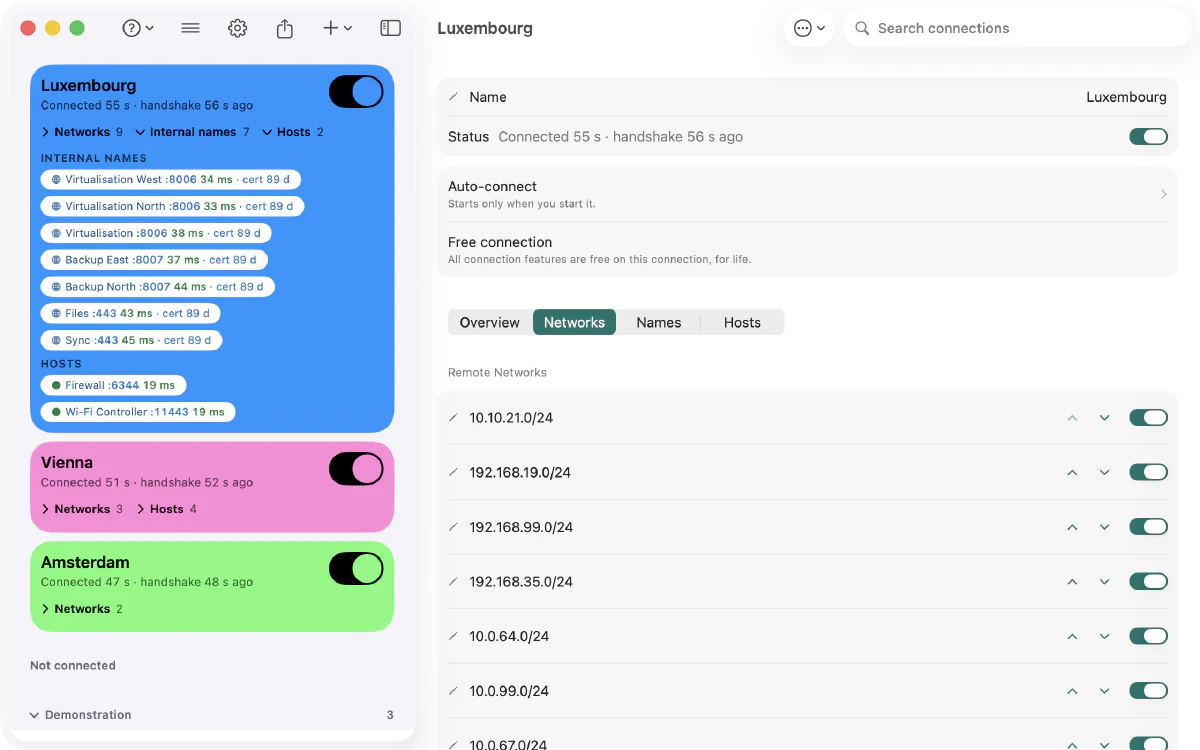
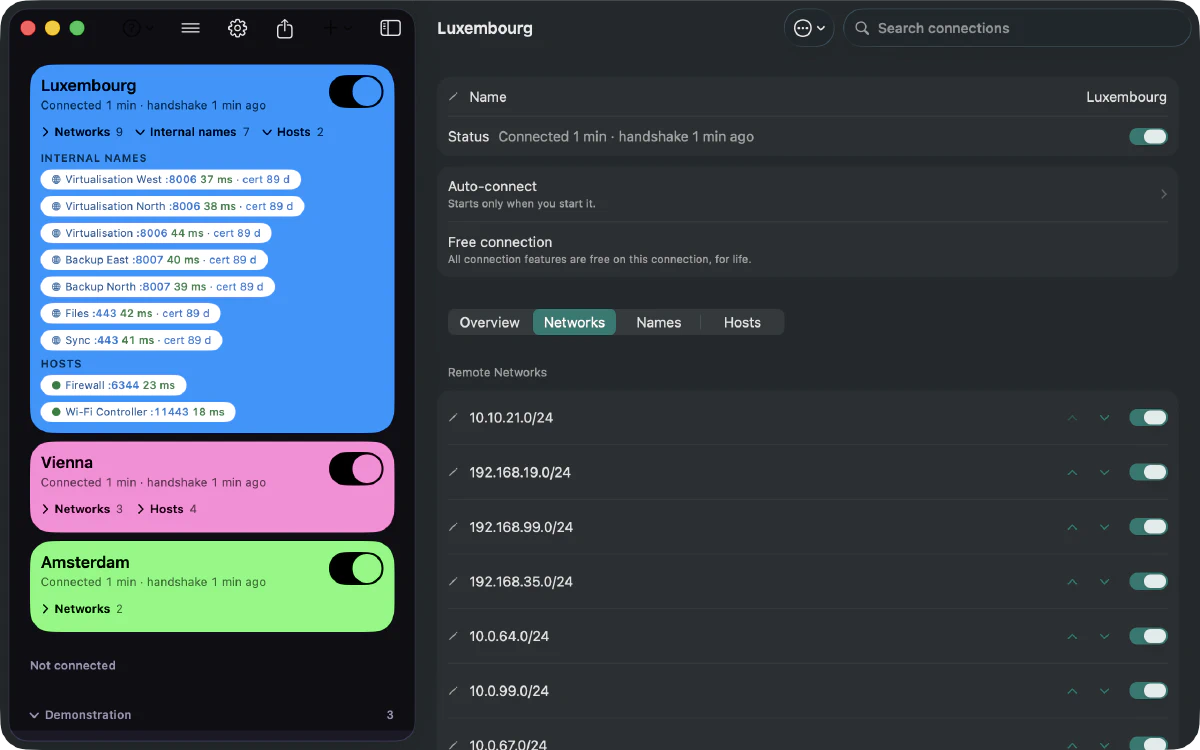
  1. The active connection, with its networks, internal names and hosts
  2. Internal names and hosts checked live: response time and certificate days
  3. A switch for each remote network the tunnel carries
  4. Connections grouped by client, site or purpose
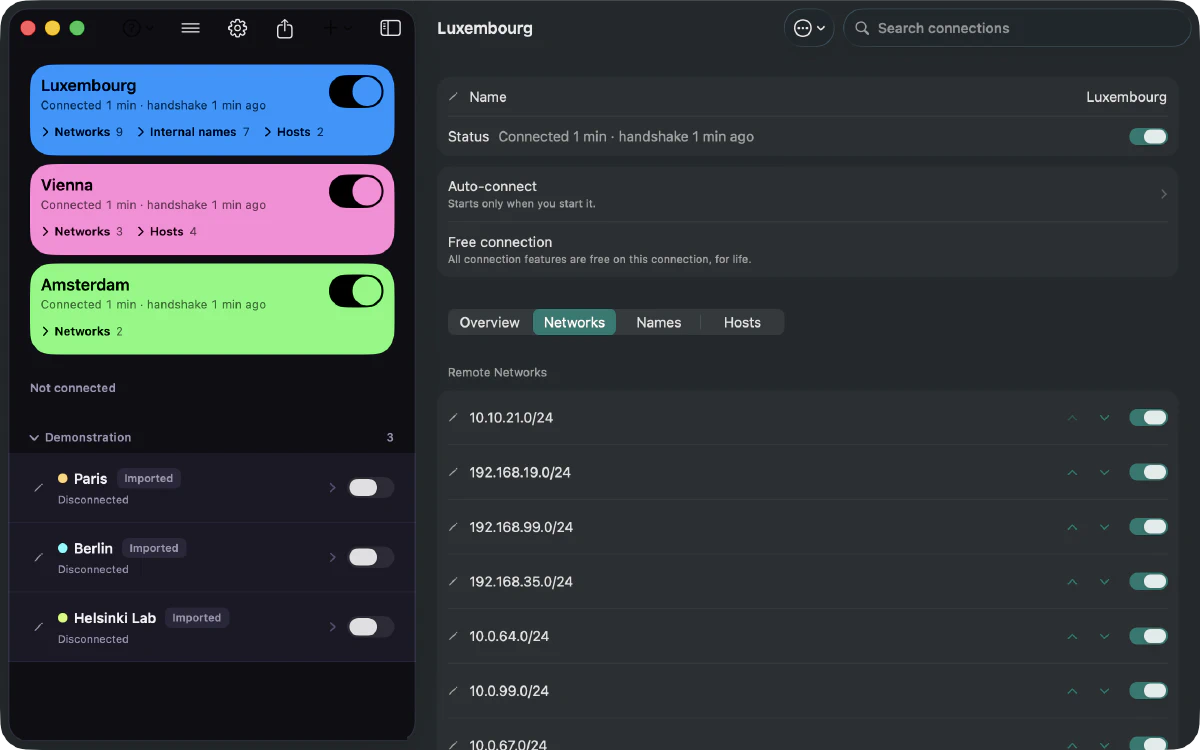
Paart on a Mac: Luxembourg, Vienna and Amsterdam connected at the same time, each in its own colour. Luxembourg’s card lists seven internal names and two hosts with their response times, and its nine remote networks each have a switch. Paart on a Mac: Luxembourg, Vienna and Amsterdam connected at the same time, each in its own colour. Luxembourg’s card lists seven internal names and two hosts with their response times, and its nine remote networks each have a switch.

Multiple networks. One workflow.

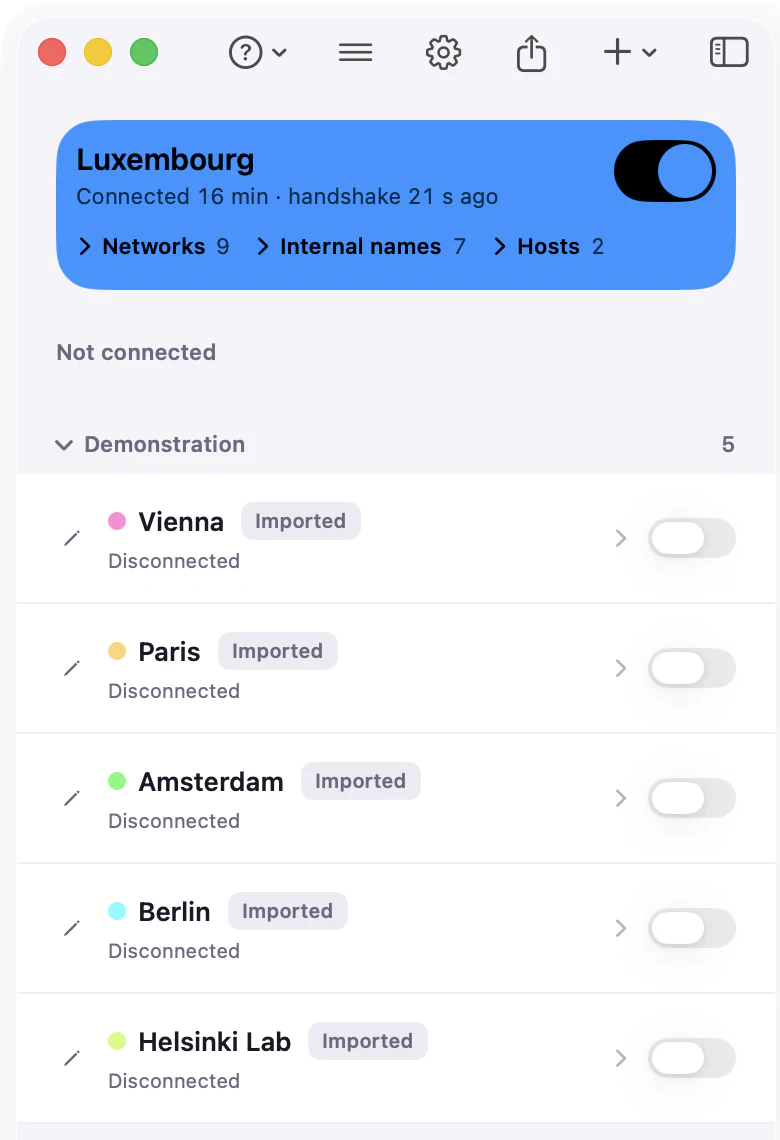
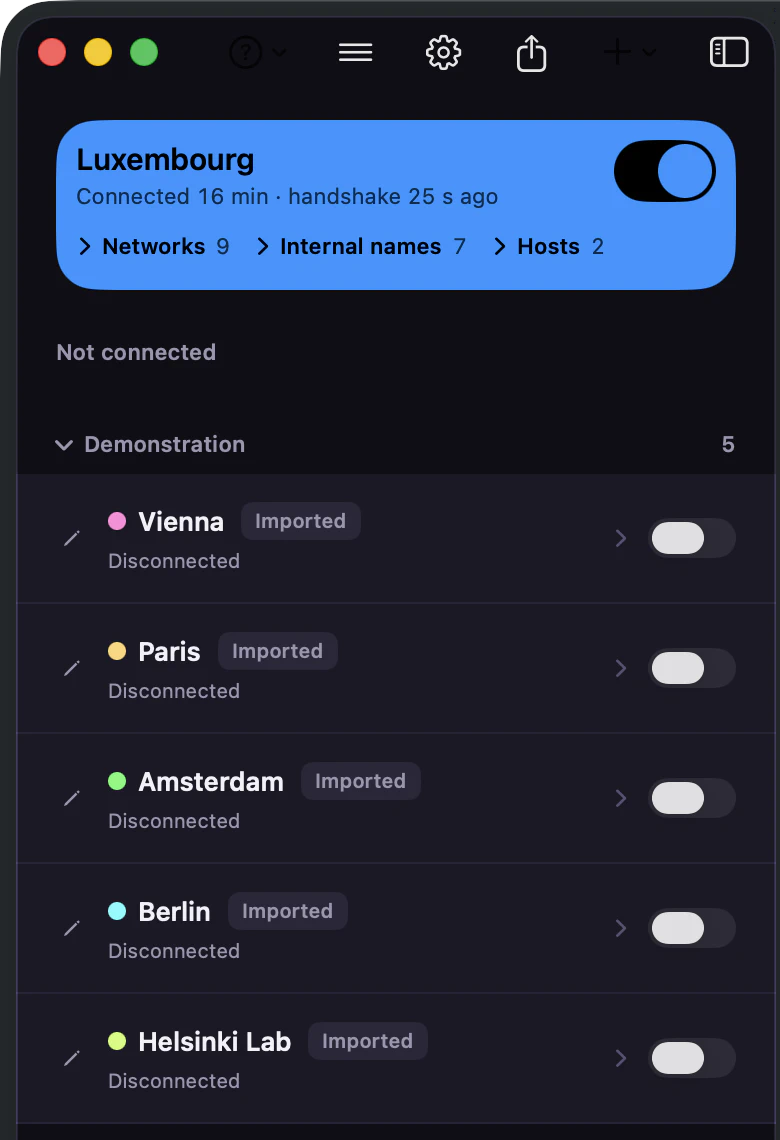
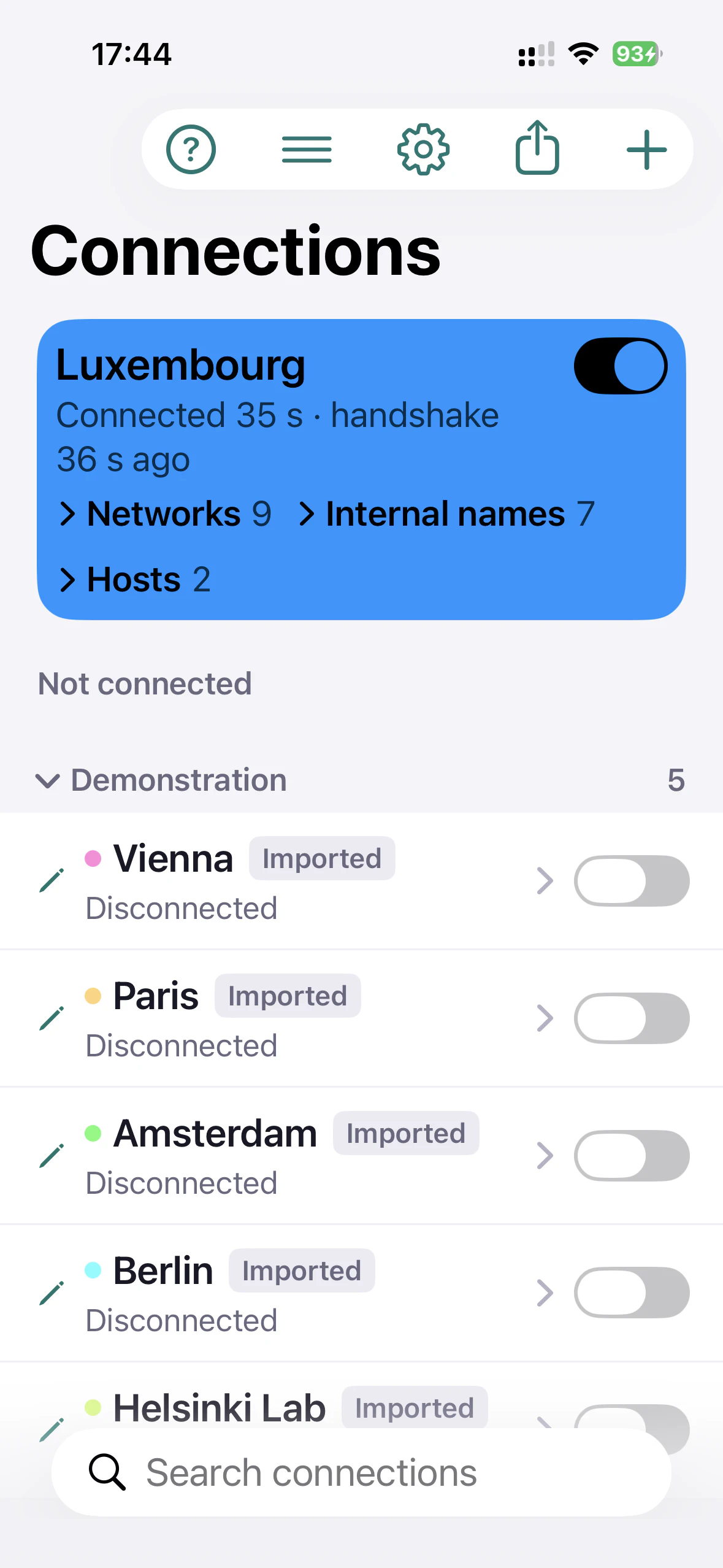
Every client, site and lab in one library — on your Mac and in your pocket.

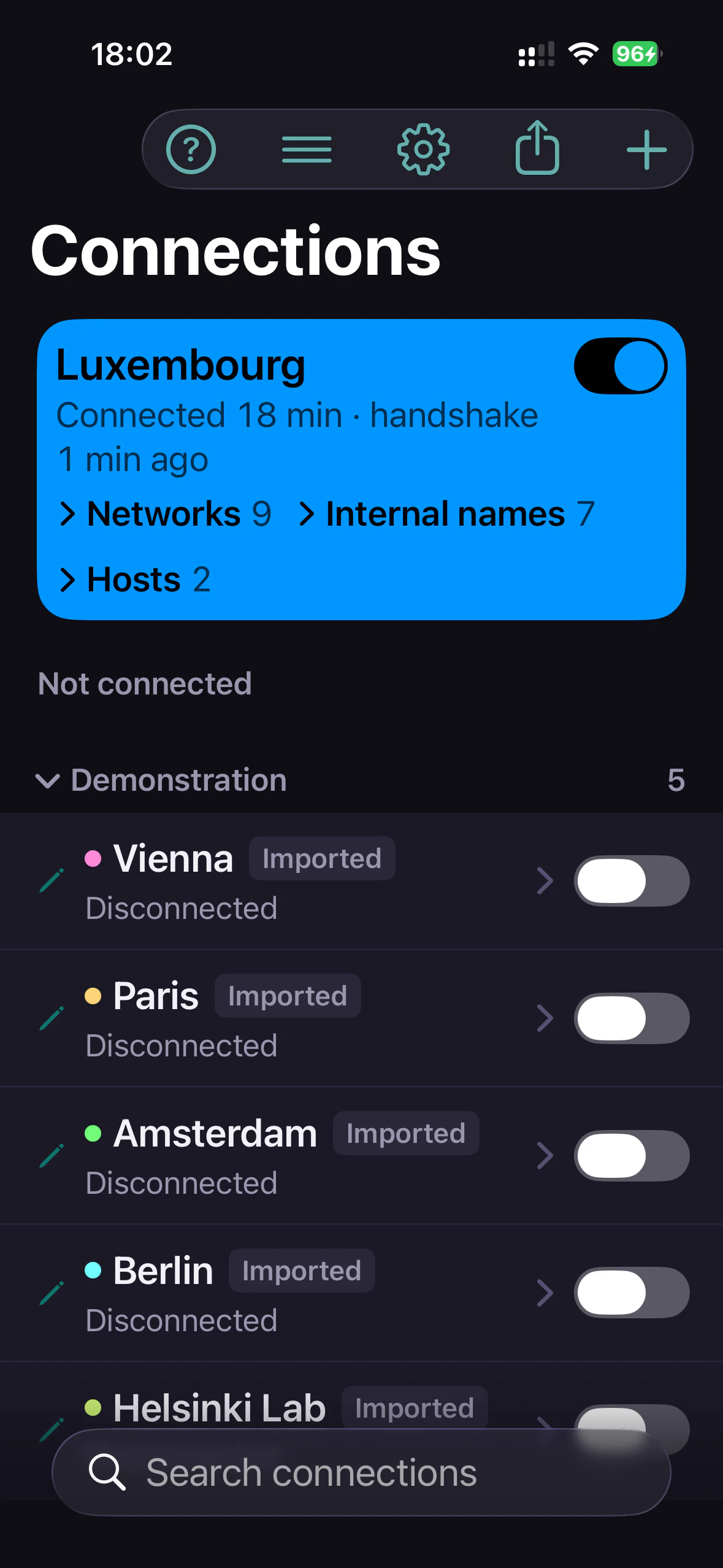
The Paart sidebar on a Mac: Luxembourg connected at the top, and a Demonstration group of five connections below it. The Paart sidebar on a Mac: Luxembourg connected at the top, and a Demonstration group of five connections below it.
Paart on iPhone: the same library, Luxembourg connected, the Demonstration group below. Paart on iPhone: the same library, Luxembourg connected, the Demonstration group below.

WireGuard is simple. Managing many WireGuard networks isn’t.

  • Configurations pile up

    One file per client, per site, per device — scattered across Macs and phones.

  • DNS differs per network

    Each client’s internal names live on that client’s resolver.

  • Address ranges overlap

    Two clients on 192.168.1.0/24 is common. Paart tells you when the connection you start overlaps one that is already up.

Paart makes multiple WireGuard networks easier to work with.

Connect

Work across networks.

On Mac, keep several WireGuard connections up at the same time when their routes can coexist — that is how current macOS behaves, not something Apple guarantees. On iPhone and iPad, one connection is active at a time. Choose which remote networks each one carries.

Several active connections: Mac · Free and Pro
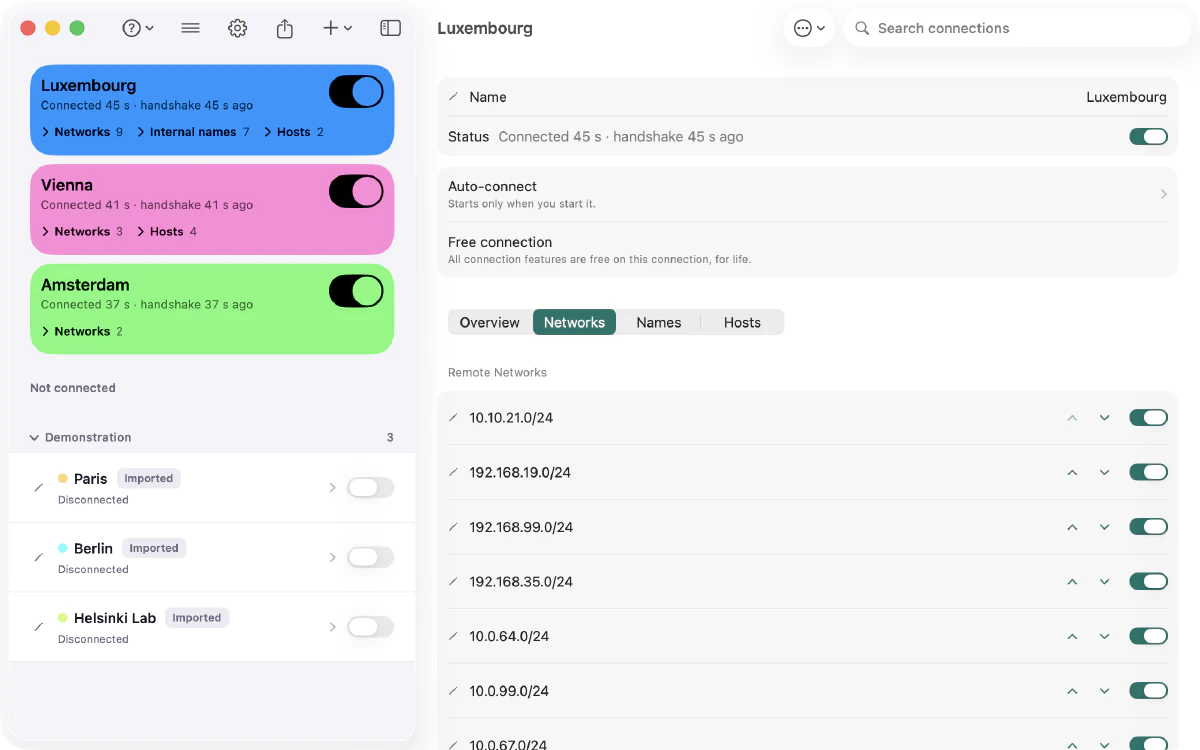
Three connections up at once on a Mac. On the right, Luxembourg’s nine remote networks, each with its own switch and arrows to reorder it. Three connections up at once on a Mac. On the right, Luxembourg’s nine remote networks, each with its own switch and arrows to reorder it.
Three connections up at once; one connection’s remote networks, each with its own switch.
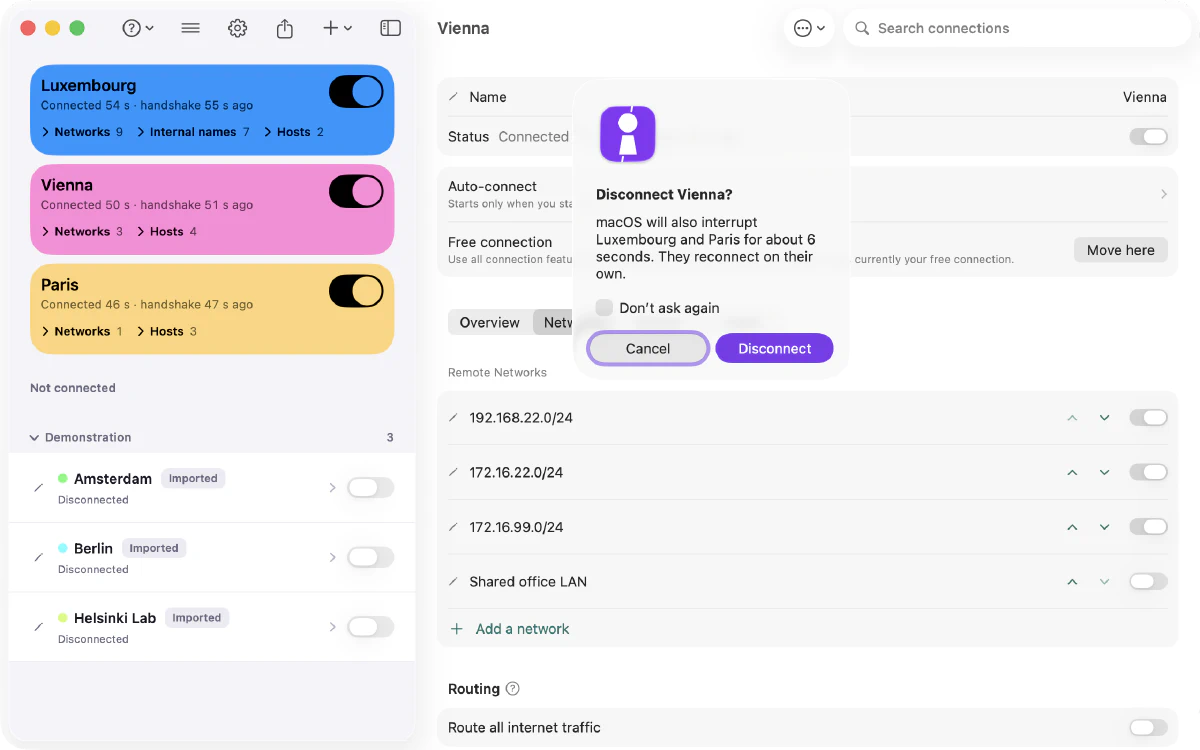
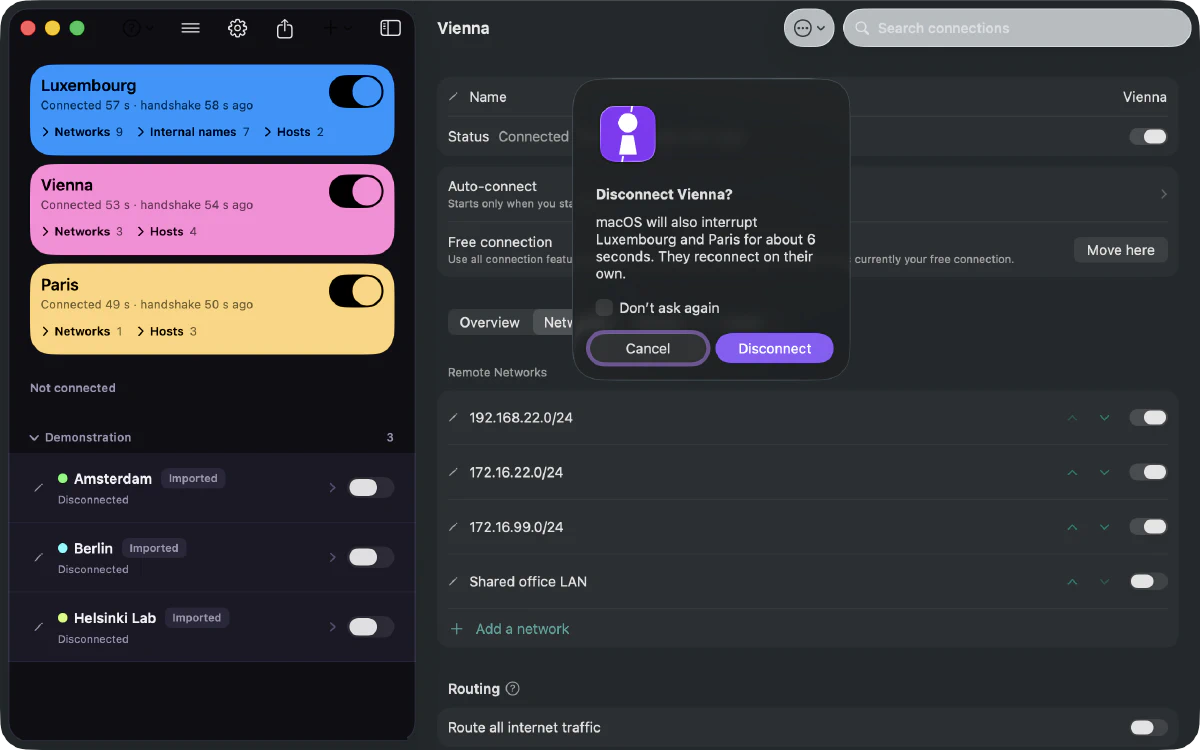
A Paart confirmation on a Mac, “Disconnect Vienna?”: macOS will also interrupt Luxembourg and Paris, which reconnect on their own. Cancel or Disconnect. A Paart confirmation on a Mac, “Disconnect Vienna?”: macOS will also interrupt Luxembourg and Paris, which reconnect on their own. Cancel or Disconnect.
Before you turn one off, Paart names the connections macOS will interrupt; they come back on their own.

Organize

Keep every network in its place.

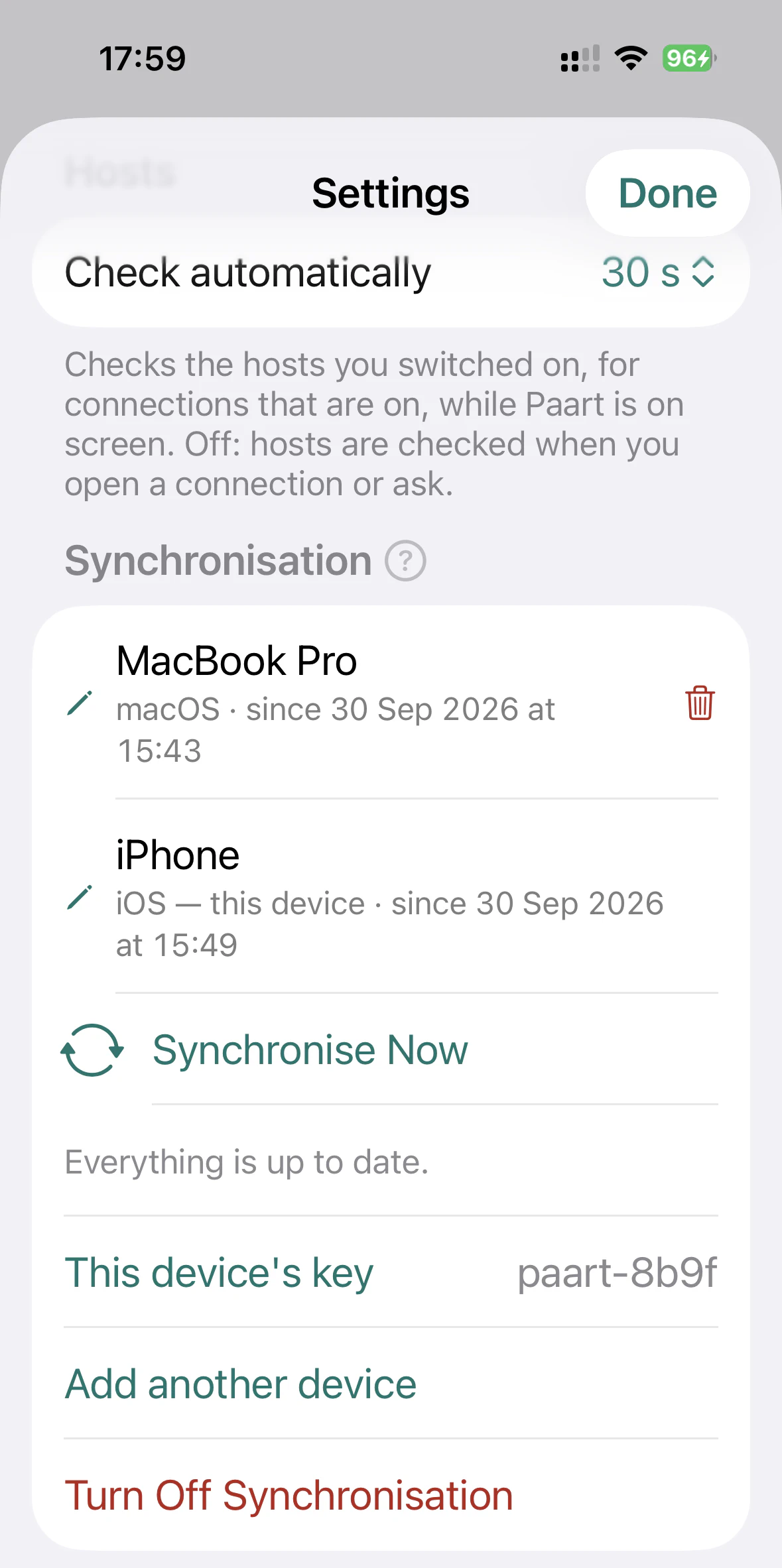
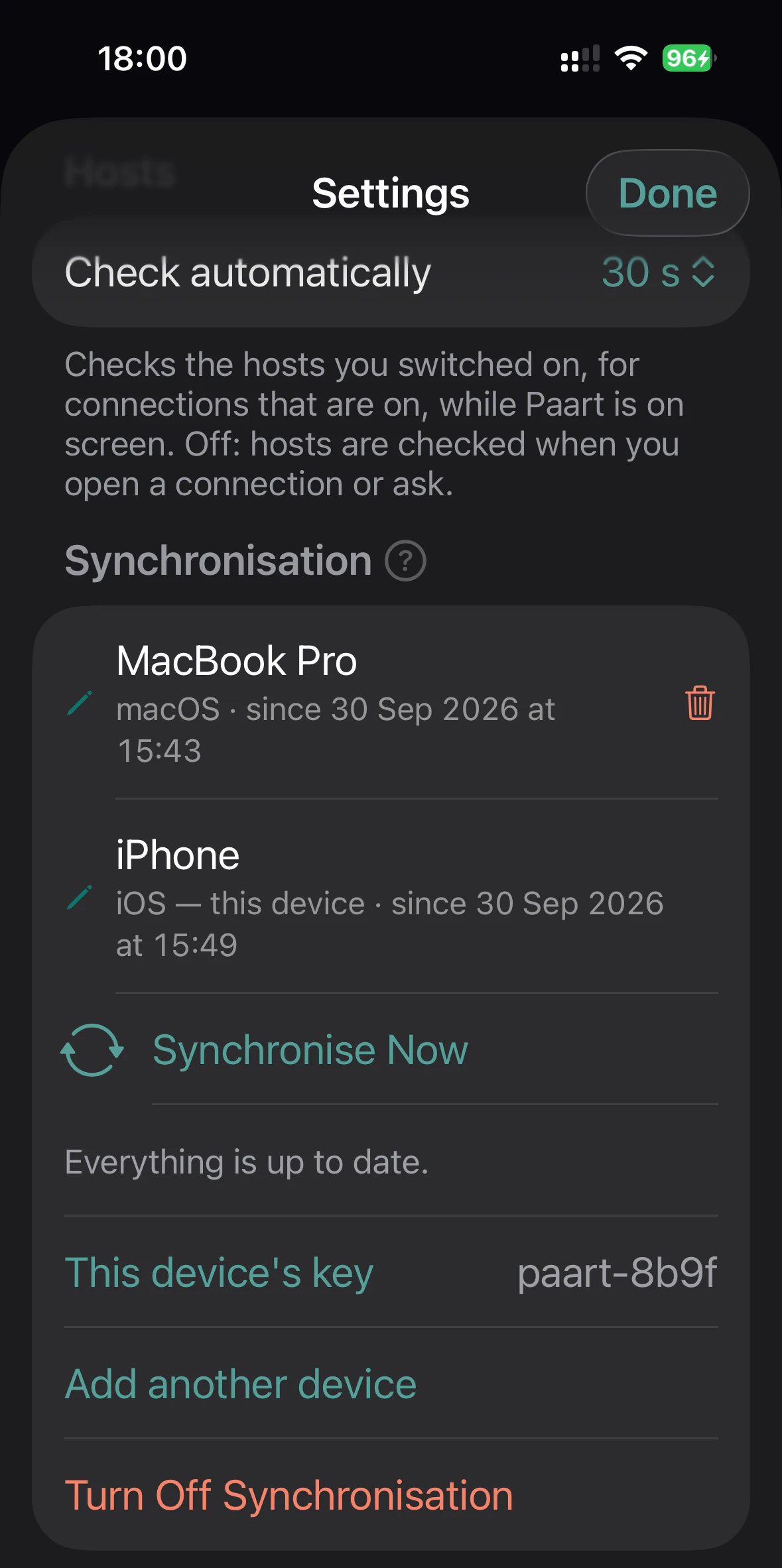
Groups, search, sorting and imports. Sync across your Mac, iPhone and iPad through your own iCloud or your own SFTP server, end-to-end encrypted with a passphrase you choose.

Sync runs when you press “Synchronise Now”. It is free while you have a single connection; with more, it pauses, and can run again once you’re back to one. How Free works

Paart Settings on iPhone: Synchronisation, listing a MacBook Pro and this iPhone, with Synchronise Now and “Everything is up to date.” Paart Settings on iPhone: Synchronisation, listing a MacBook Pro and this iPhone, with Synchronise Now and “Everything is up to date.”

Resolve

Keep DNS where it belongs.

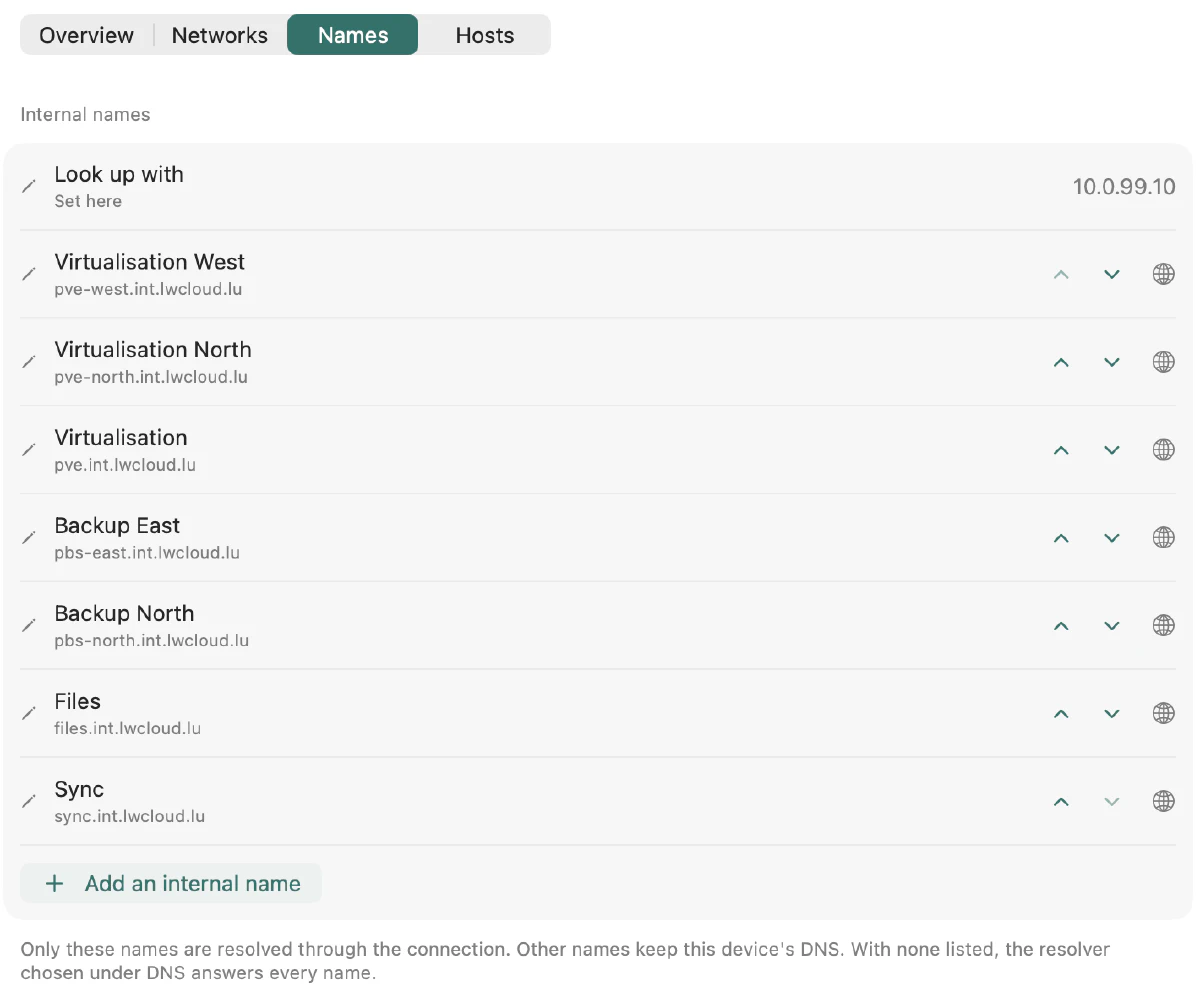
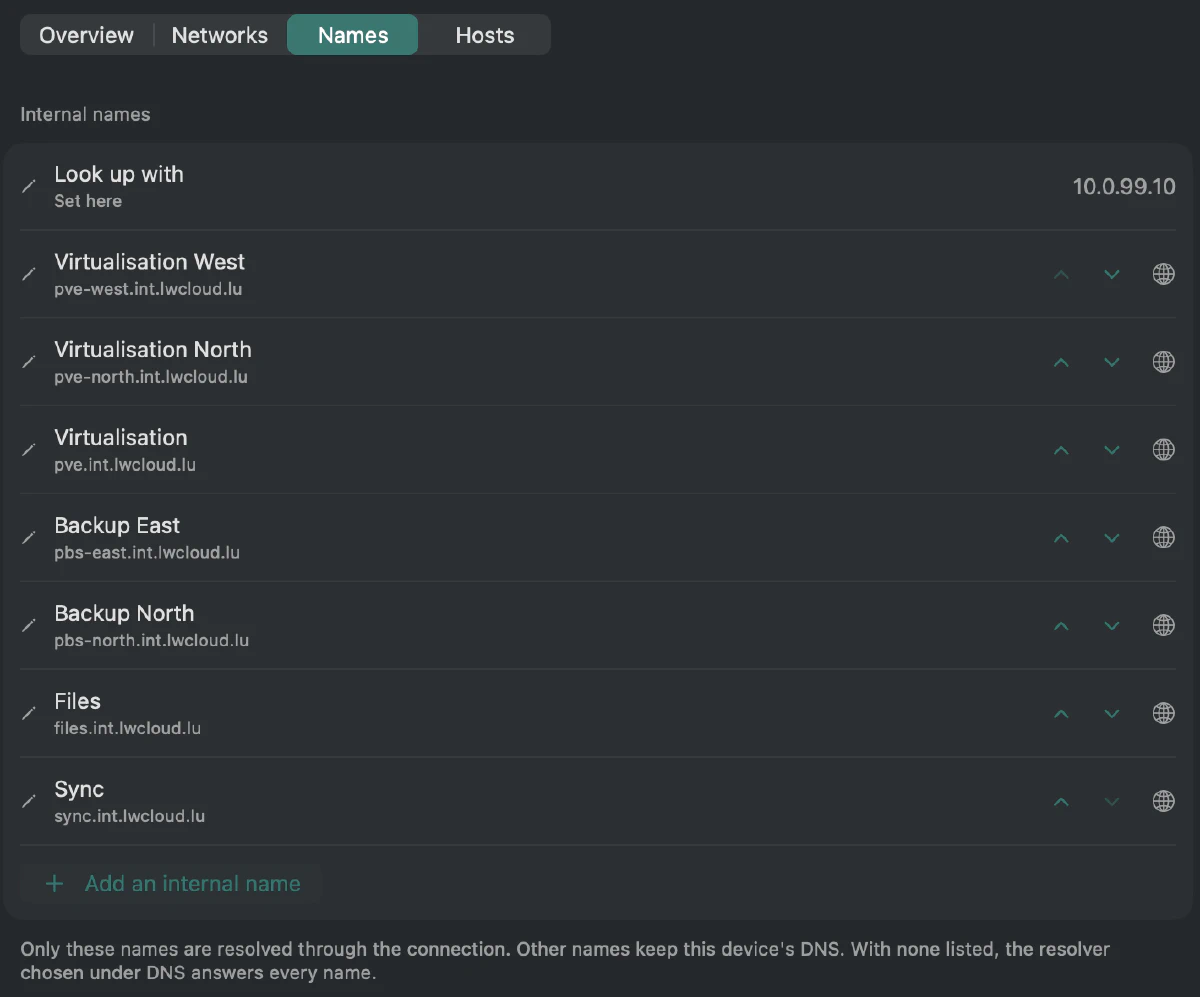
Reach a client’s internal names through the tunnel; your local DNS answers everything else. Declare int.example.com and it resolves on the client’s DNS, 10.0.99.10 — google.com still goes to your Wi-Fi’s DNS, unless you choose an override resolver.

All platforms

The Names tab of a connection on a Mac: internal names looked up with 10.0.99.10, seven names such as pve-west.int.lwcloud.lu, and Add an internal name. The Names tab of a connection on a Mac: internal names looked up with 10.0.99.10, seven names such as pve-west.int.lwcloud.lu, and Add an internal name.

Understand

See what’s happening.

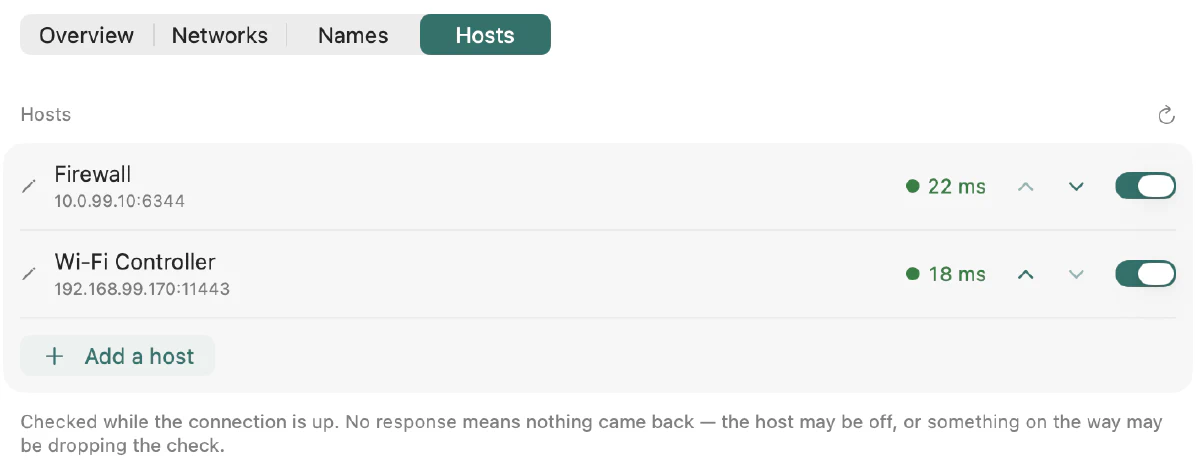
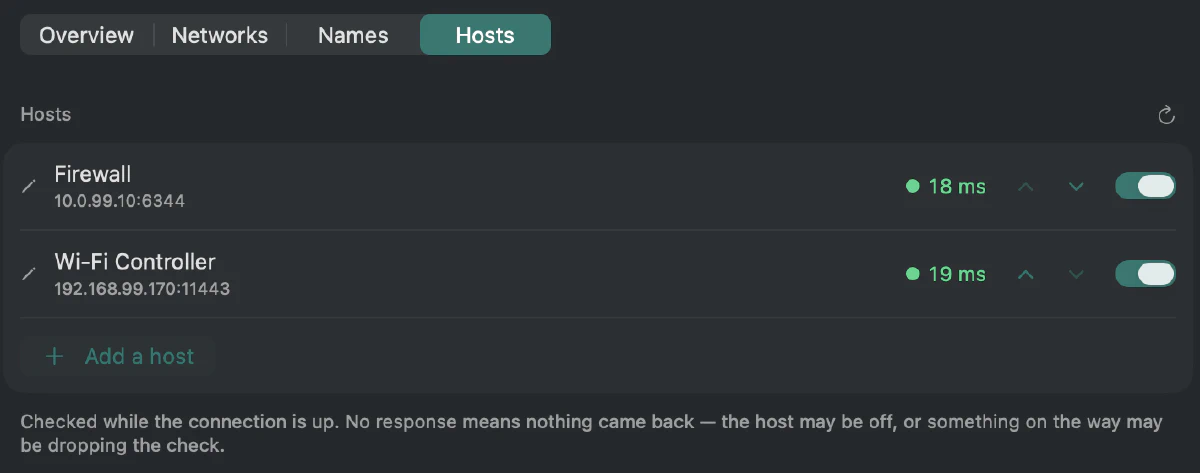
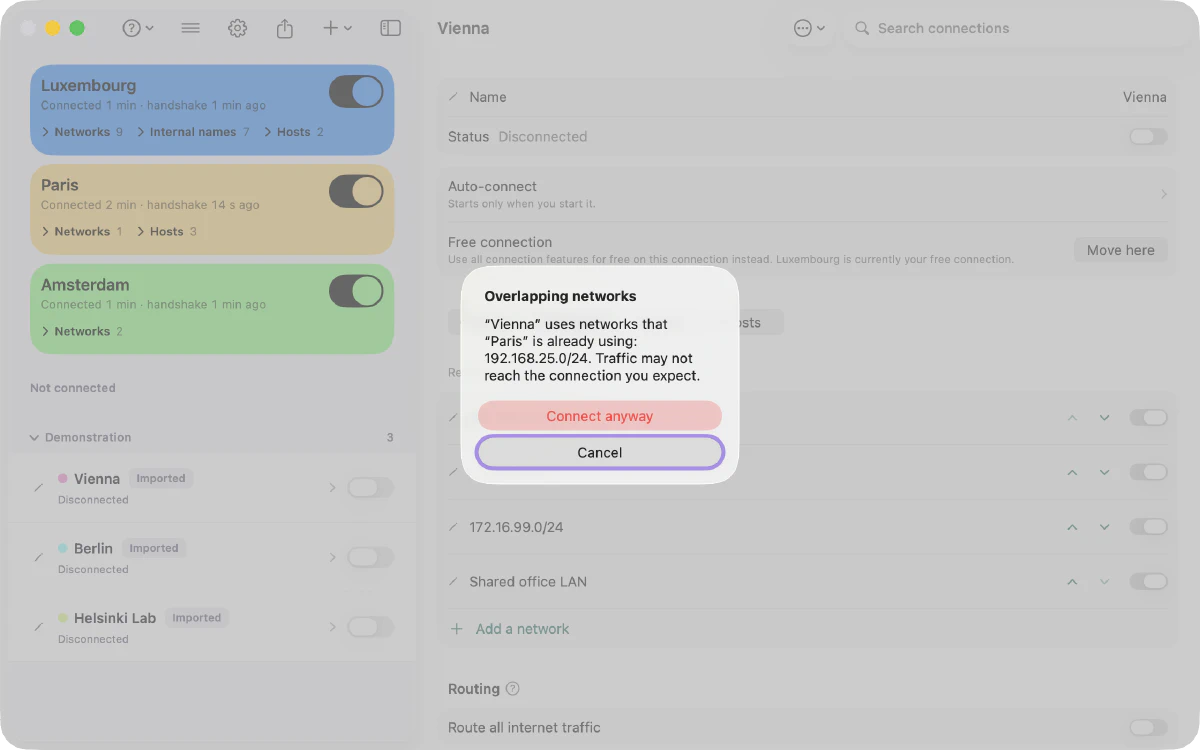
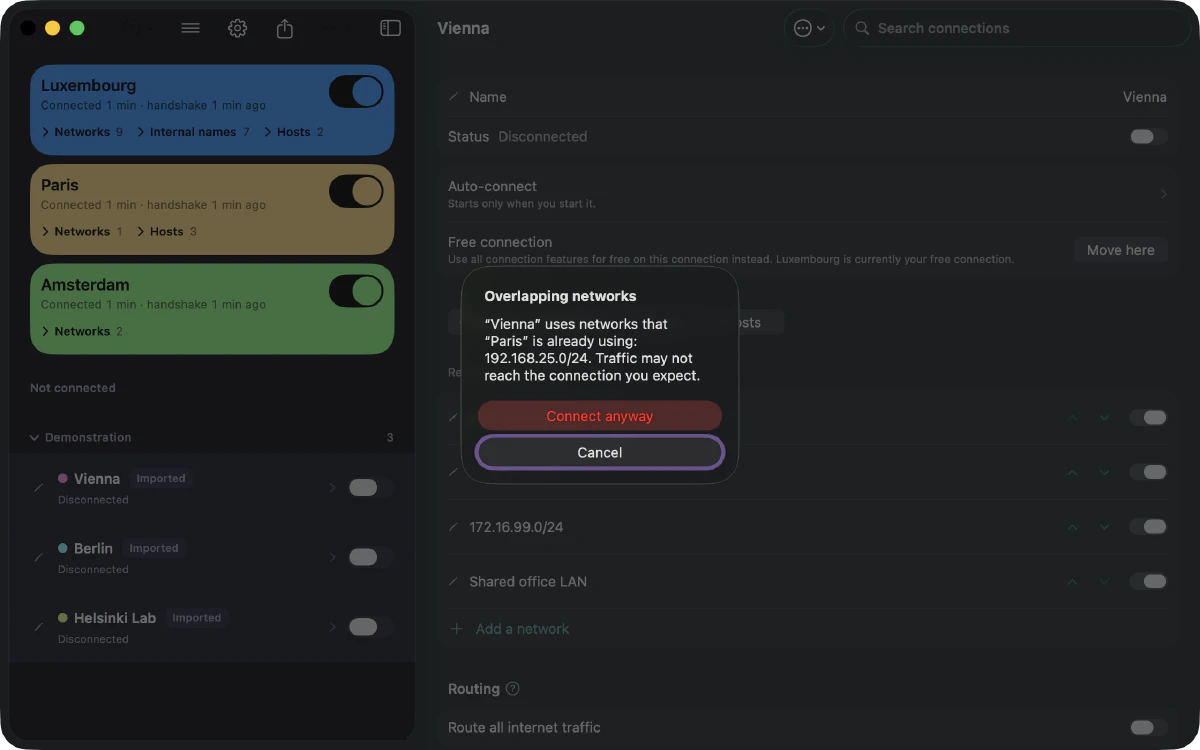
Resource checks on the hosts you care about, clear connection state, and a note when Paart observes networks that overlap — so you know where to look.

The Hosts tab on a Mac: Firewall and Wi-Fi Controller, each with its round-trip time through the tunnel. The Hosts tab on a Mac: Firewall and Wi-Fi Controller, each with its round-trip time through the tunnel.
A Mac alert, “Overlapping networks”: Vienna uses 192.168.25.0/24, which Paris is already using, and traffic may not reach the connection you expect. Connect anyway or Cancel. A Mac alert, “Overlapping networks”: Vienna uses 192.168.25.0/24, which Paris is already using, and traffic may not reach the connection you expect. Connect anyway or Cancel.
What Paart shows when the connection you start overlaps one already up.

Everything Paart Client does →

Built from real IT work — shaped by real feedback.

Paart grew out of managing around forty client networks and using WireGuard every day. It started with real work, not a feature list. Bug reports and feature requests sent from the app are read and reviewed, and they shape what comes next.

Built by
François · Lux-World PC, Luxembourg
Client networks, daily
~40

Advanced networking on one connection, free. On all of them, with Pro.

Free

€0

Import and connect as many WireGuard configurations as you like — on current macOS, several at once when their routes can coexist. Two things are bounded. Advanced networking — networks, named hosts, DNS and full-tunnel routing — applies to one connection you choose, for life, and you can switch it anytime. Sync is included while you have a single connection, and can run again once you’re back to one. The kill switch works on every connection.

Paart Pro

€49.99 once

Or €24.99 / year · €3.99 / month

Advanced networking on every connection, and sync for your whole library across Mac, iPhone and iPad — through your own iCloud or your own SFTP server. One purchase covers Mac, iPhone and iPad.

Sync is free while you have a single connection. Add a second and sync pauses: what’s already synced stays where it is, and sync can run again once you’re back to one connection — or right away with Pro. Either way, it runs when you press “Synchronise Now”. Read the FAQ

  • No Paart account

    No sign-up, no login.

  • Not a VPN service

    Paart is a WireGuard client. We run no VPN server: tunnels go straight to your own endpoints.

  • Your configurations

    Standard wg-quick files in, export out.

  • Keys stay on your devices

    The app sends no telemetry and contains no trackers.

Bring your WireGuard. Paart makes it manageable.

Download Paart
Free
Connect as many configurations as you like. Advanced networking on one connection you choose, switchable anytime. Sync while you have a single connection — it can run again once you’re back to one.
Paart Pro
Advanced networking and sync on every connection.

Images: Paart 1.1.0 (1712) on macOS 26 and iOS 26.