 Paart
PaartPaart Client · Mac · iPhone · iPad
Everything Paart Client does.
A WireGuard client for your existing configurations — built to keep many networks usable side by side.
- Free
- Connect as many configurations as you like. Advanced networking on one connection you choose, switchable anytime. Sync while you have a single connection — it can run again once you’re back to one.
- Paart Pro
- Advanced networking and sync on every connection.
Connect
Work across networks.
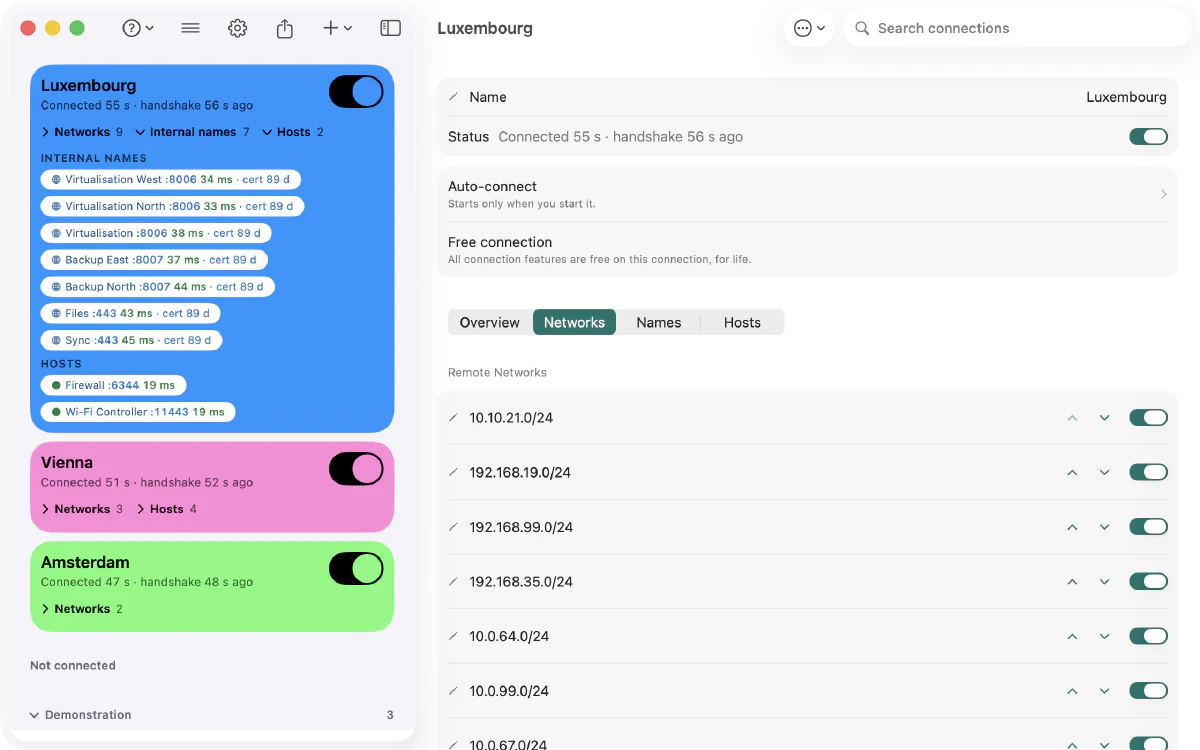
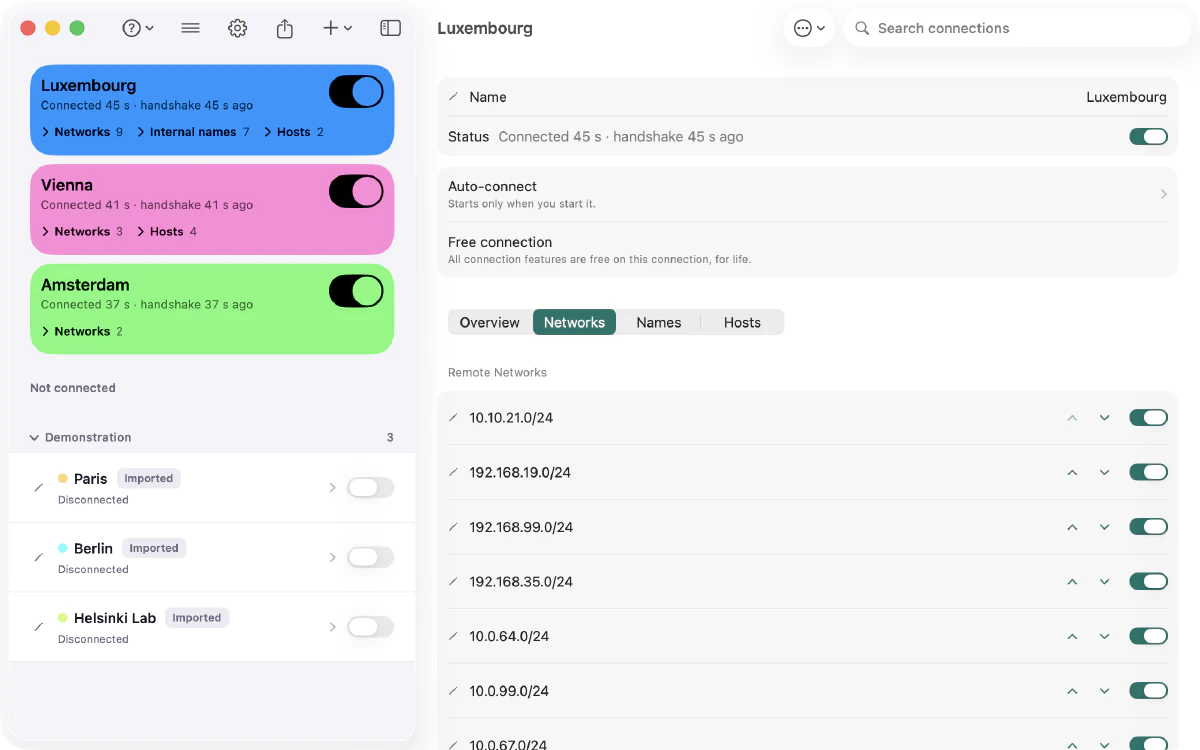
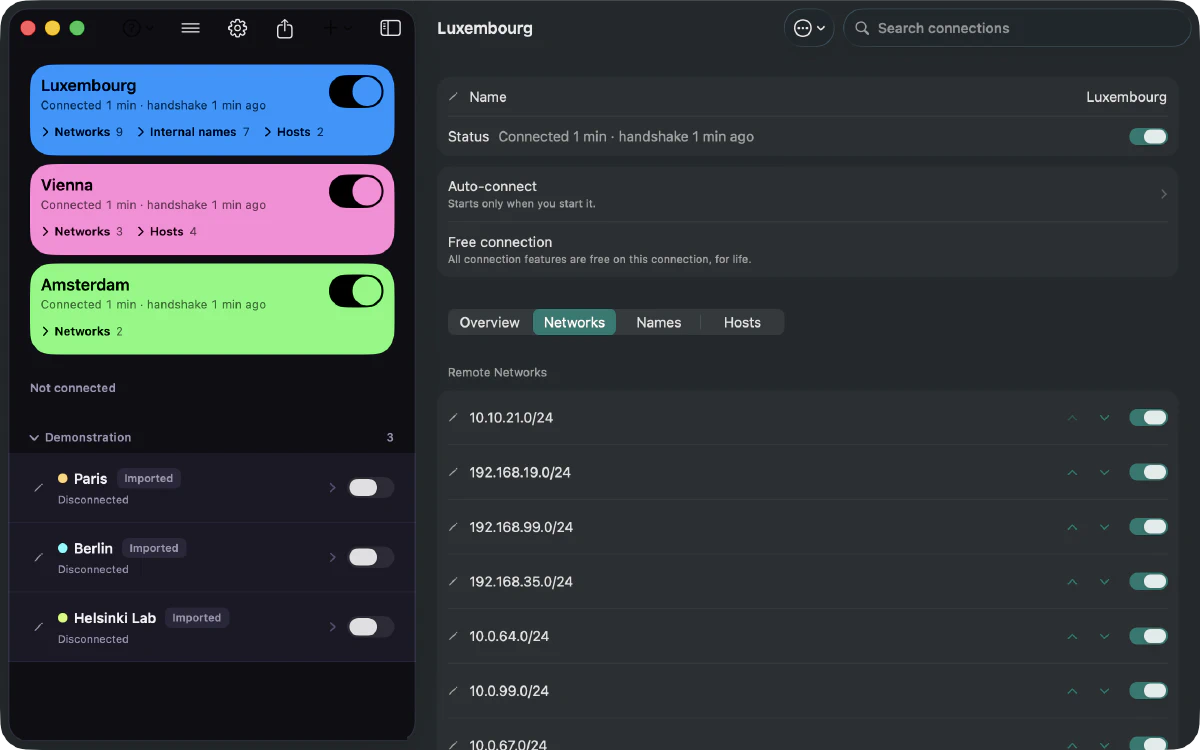
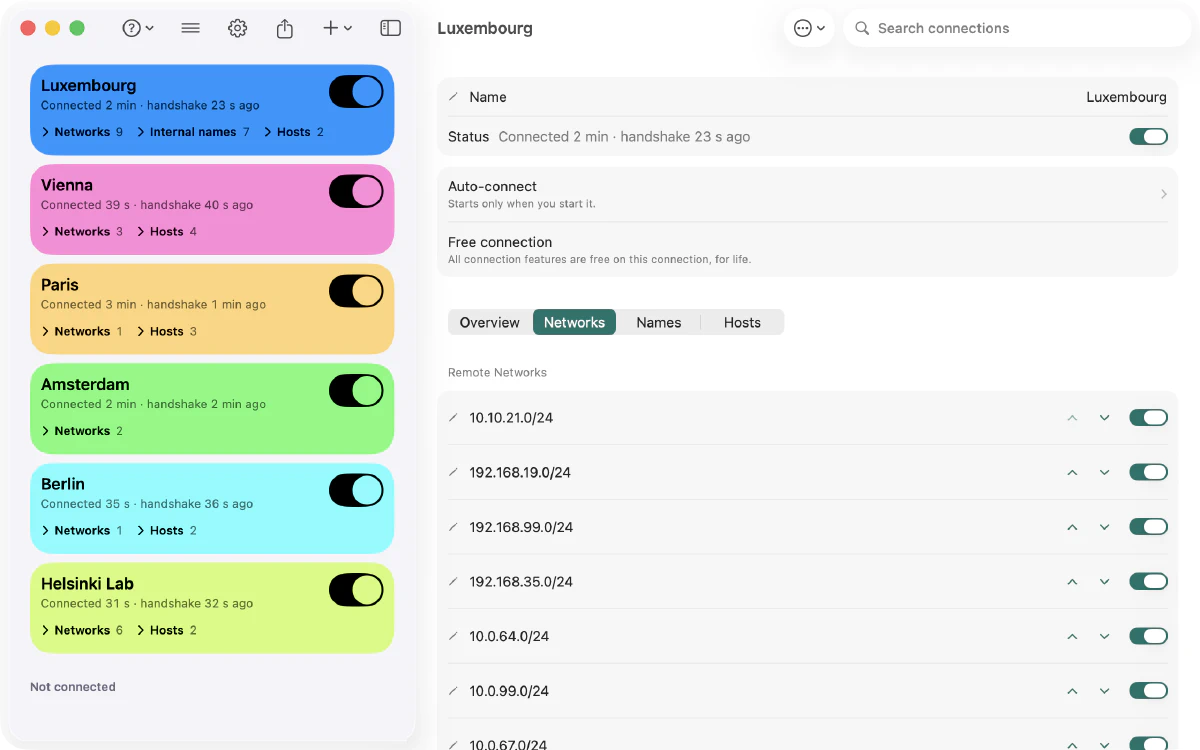
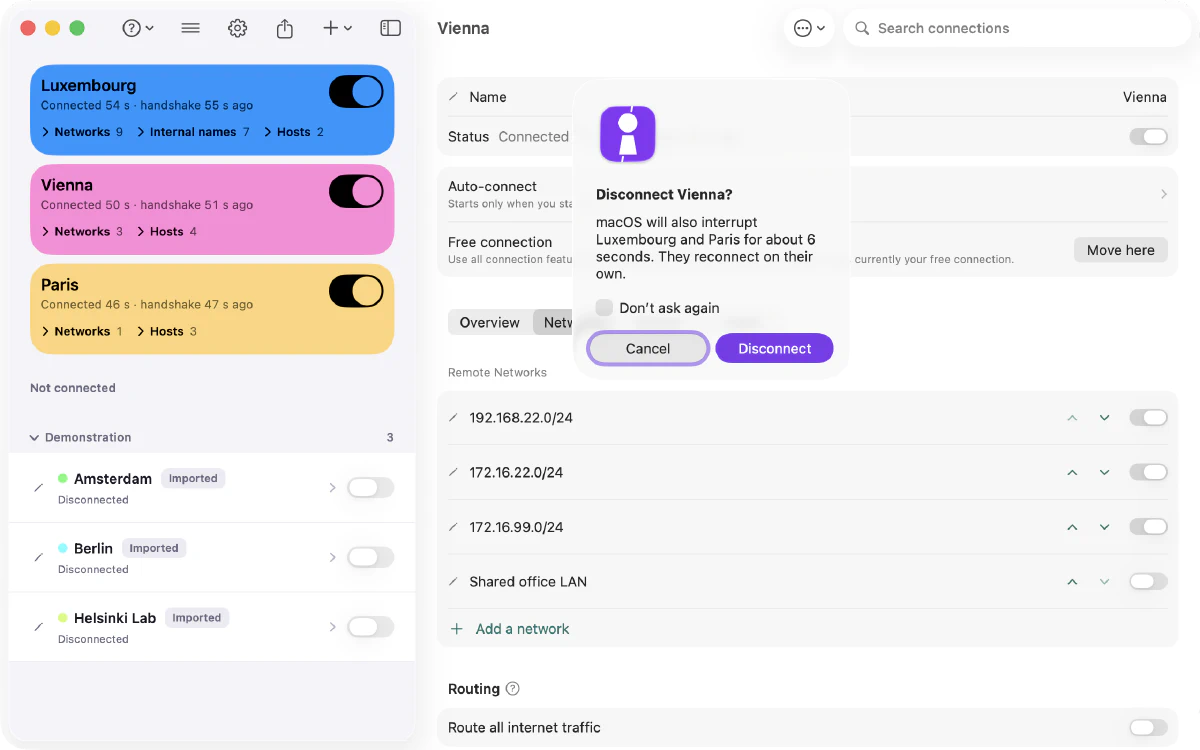
- Simultaneous connections on Mac, when their routes can coexist — on Free and Pro. That is how current macOS behaves, not something Apple guarantees.
- A switch for each remote network a connection carries.
- Route all traffic through the tunnel, or only the connection’s own networks.
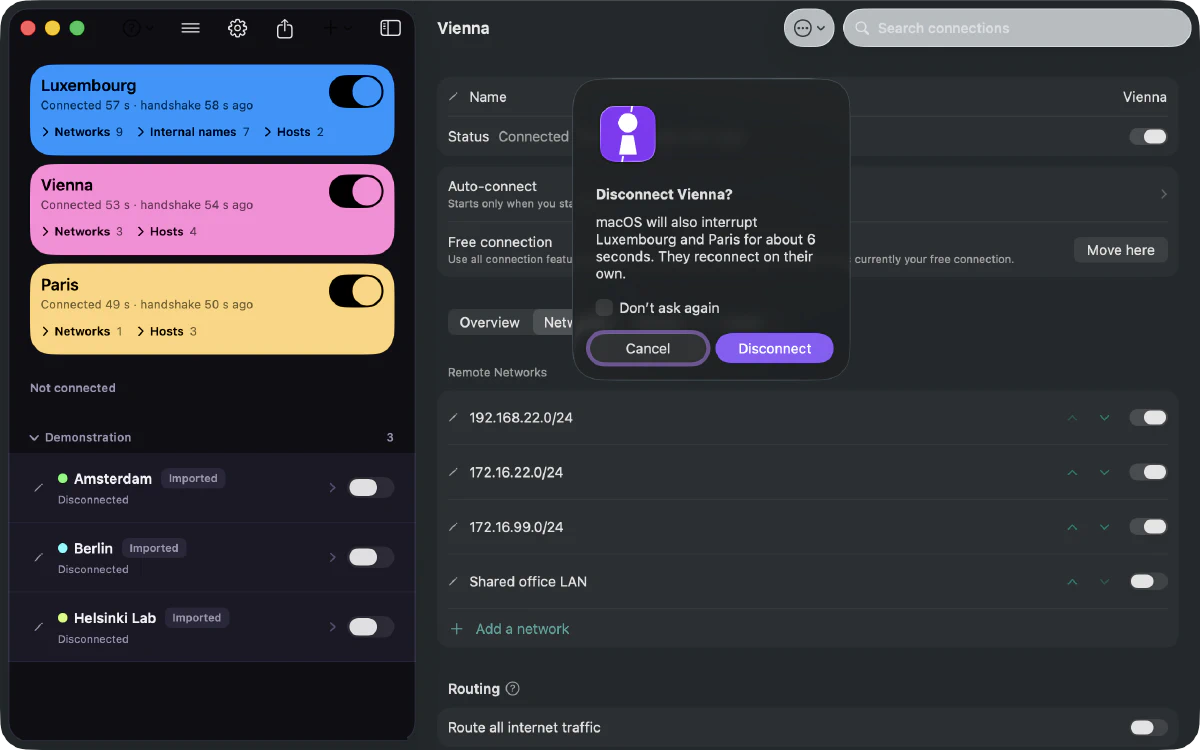
- On Mac, stopping one connection interrupts the others — macOS does that, not Paart. They come back on their own, and their card keeps its place and colour under “Resuming…”.
Organize
Keep every network in its place.
- Groups, to gather connections by client, site or purpose.
- Search and sort across the whole library.
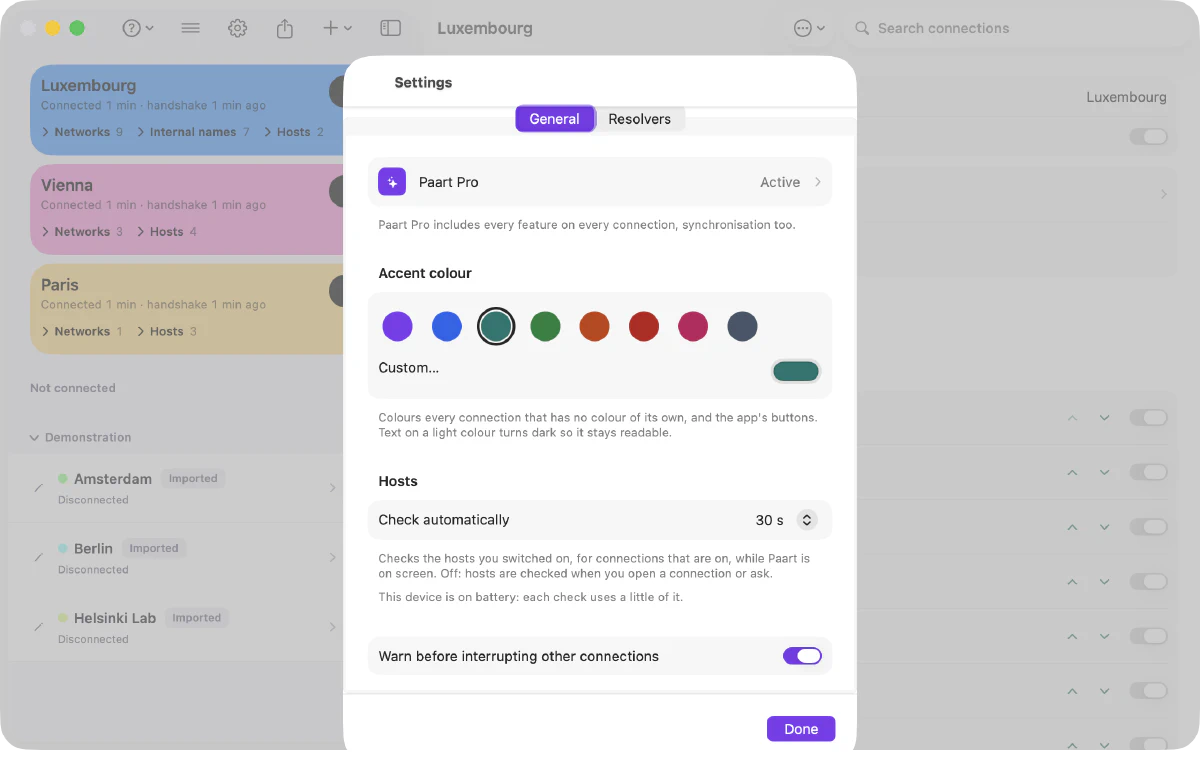
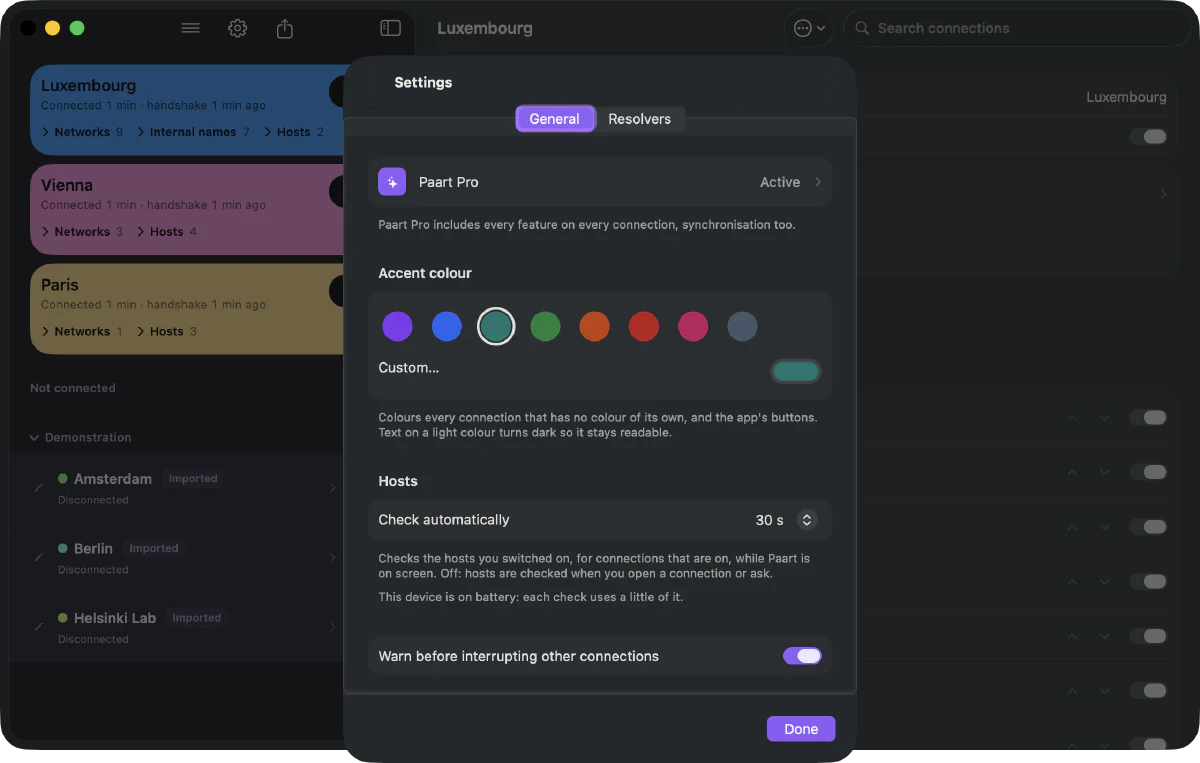
- Colours: an accent for the app, one per connection, and one per group that its connections take unless they have their own — on Free and Pro.
- Arrows to reorder the networks, internal names and hosts of an imported connection — the order never changes the routes.
- Import standard wg-quick files and QR codes, no limit on how many. Export a .conf for any WireGuard app, or a .paart file that brings a connection back into Paart with everything you set — private key included, so keep it like the key itself.
- Sync through your own iCloud or your own SFTP server, when you press “Synchronise Now” — free while you have a single connection; with a second it pauses, and can run again once you are back to one, or with Pro.
Resolve
Keep DNS where it belongs.
- Internal names, on every platform: declare a client’s names, and only those resolve through the tunnel, on the resolver you set. Every other name keeps this device’s DNS — unless you pick an override resolver in Settings, which then answers them instead.
- A resolver library — Google, Cloudflare, Quad9 and Cisco OpenDNS to start with — shown in a connection’s DNS picker, and carried to your other devices by sync.
- Switch DNS without editing the configuration.
Understand
See what’s happening.
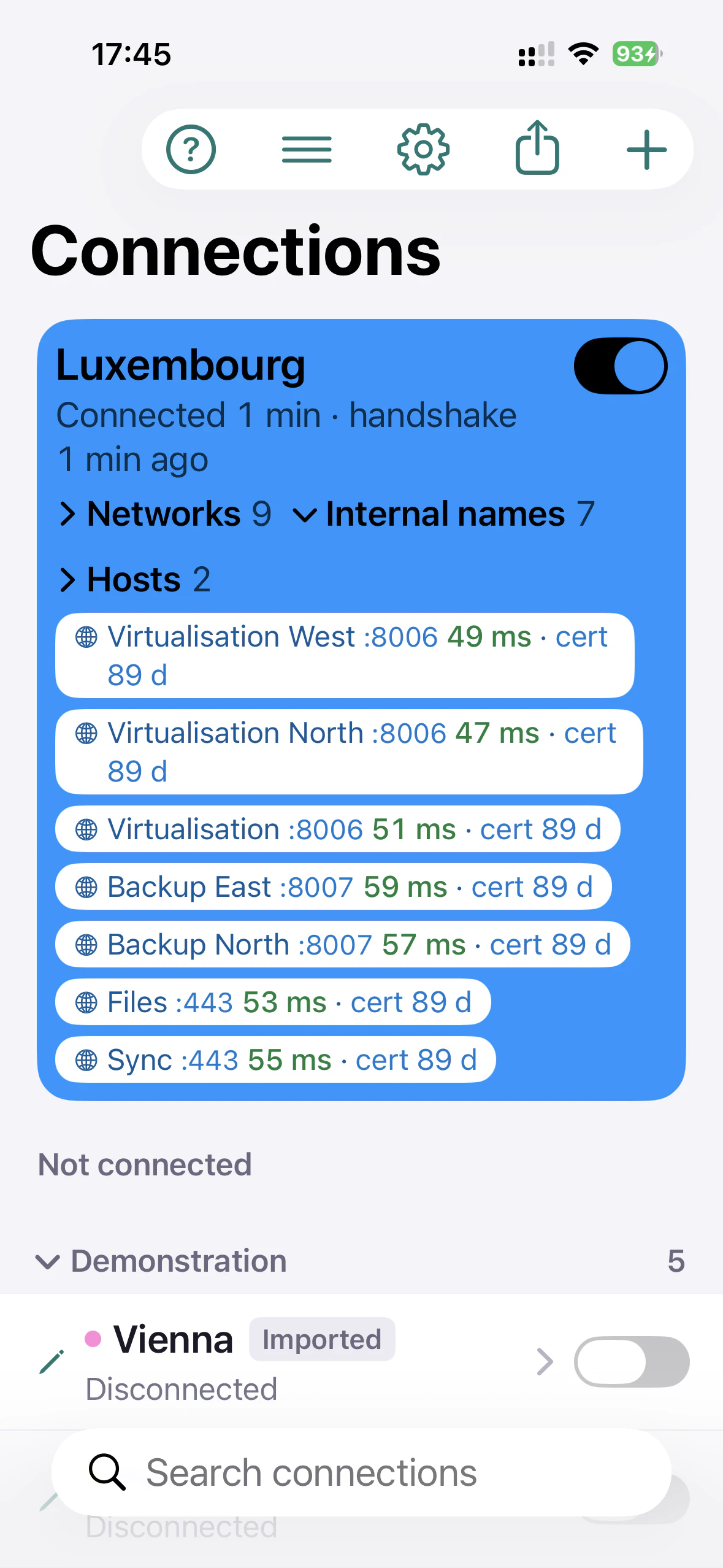
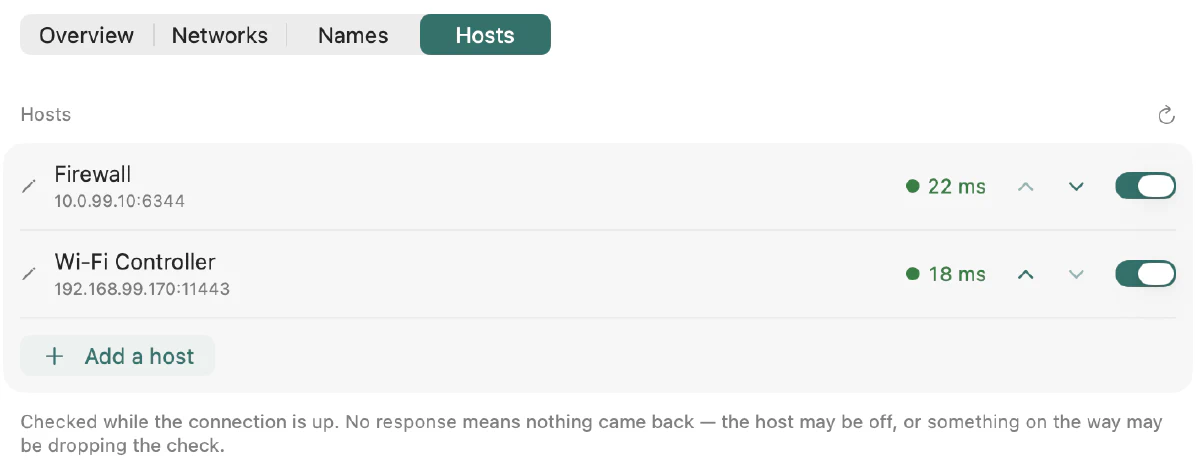
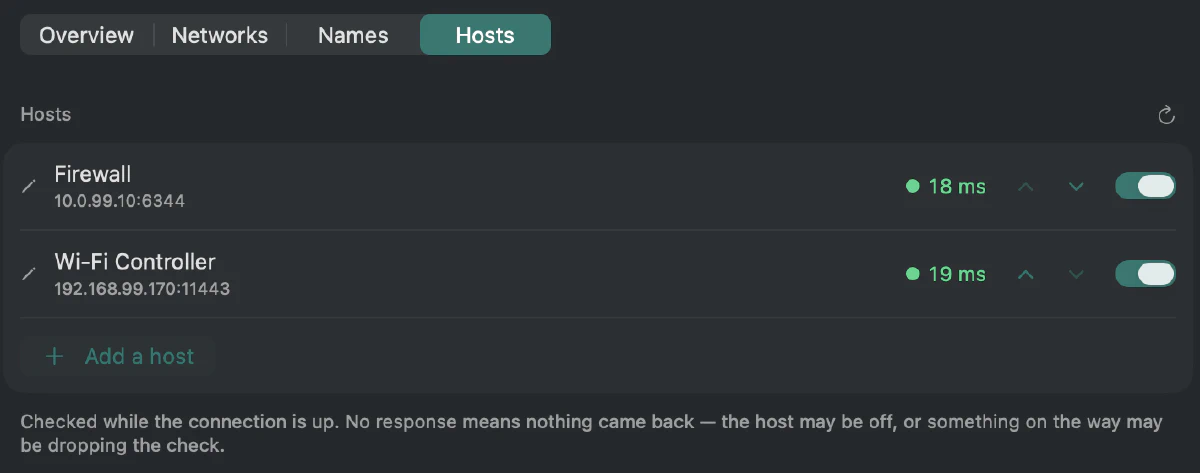
- Resource checks on the hosts you add — reachability and round-trip time. Adding hosts is part of advanced networking; hosts already there keep being checked.
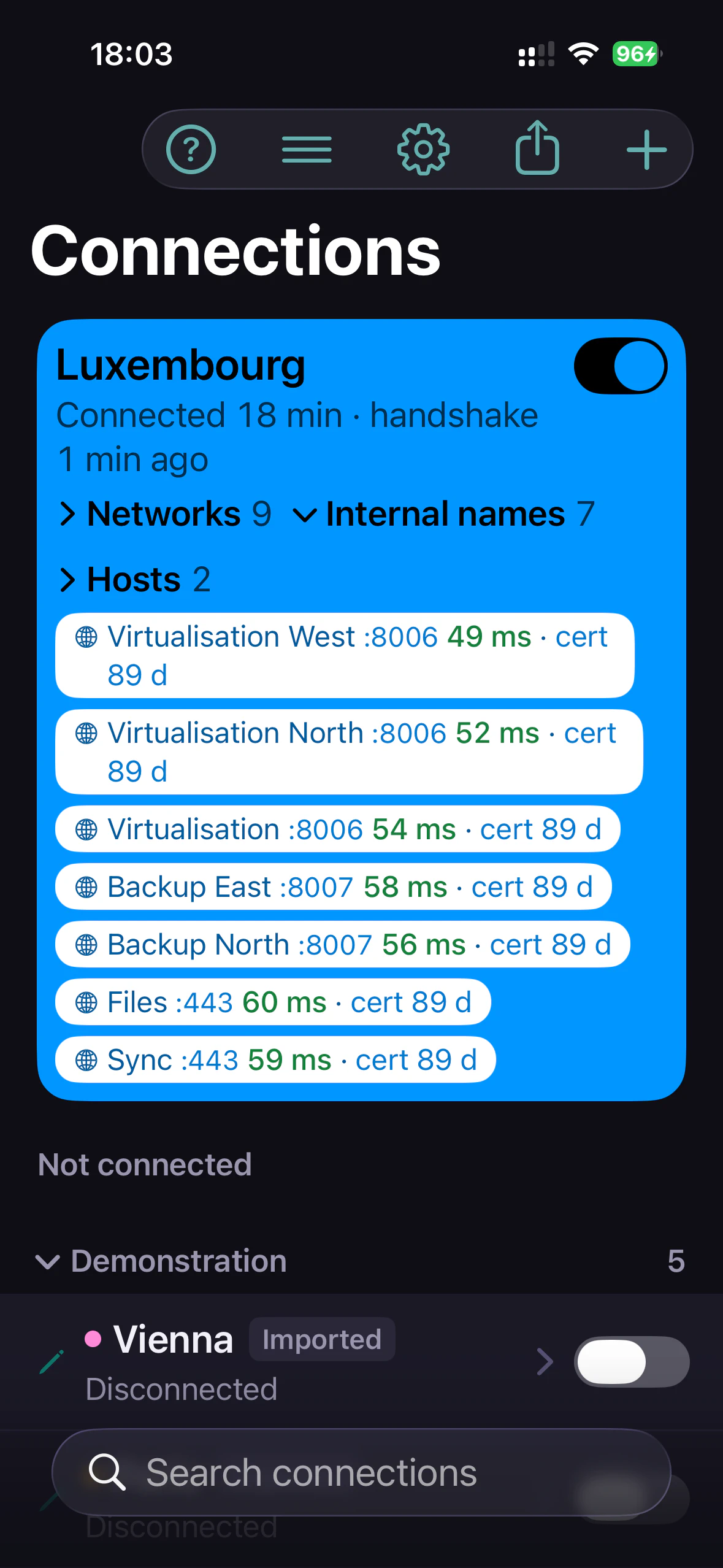
- Internal names are checked too: response time, and the days left on their HTTPS certificate — in orange under 14 days. Like hosts, part of advanced networking.
- “Check automatically”: off by default, or every 30 s, 1 min or 5 min — only while Paart is on screen, never in the background, and paused in Low Power Mode.
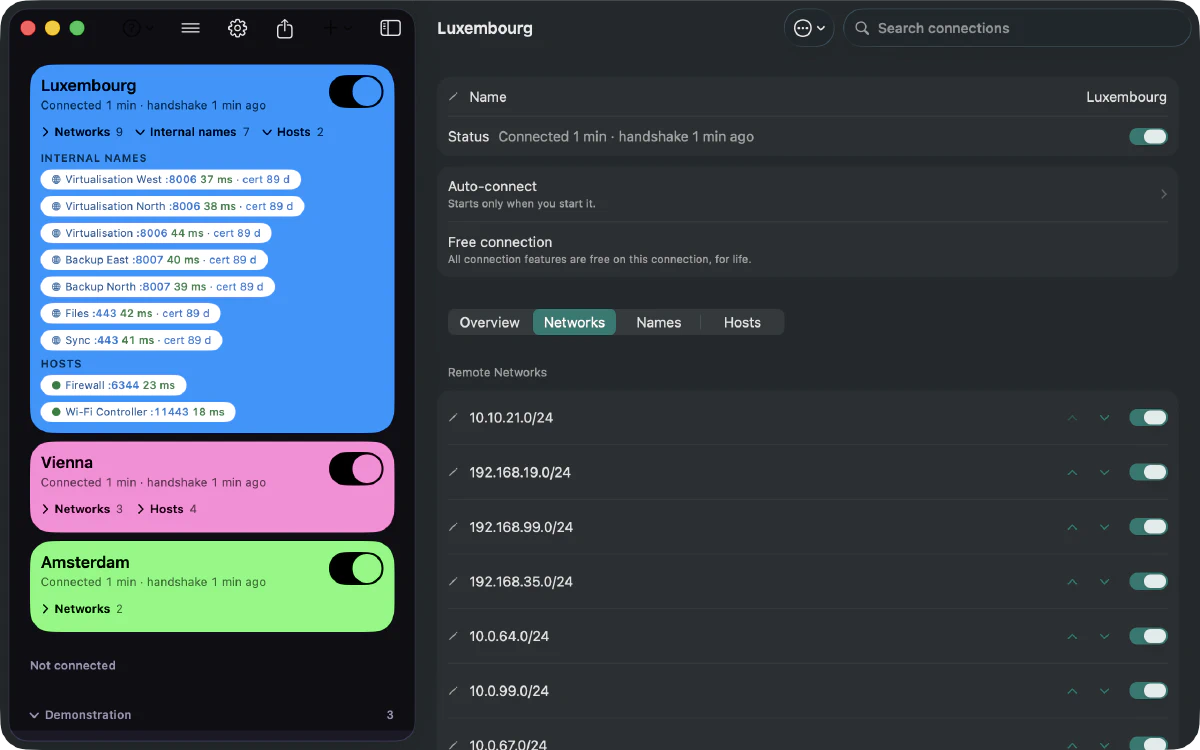
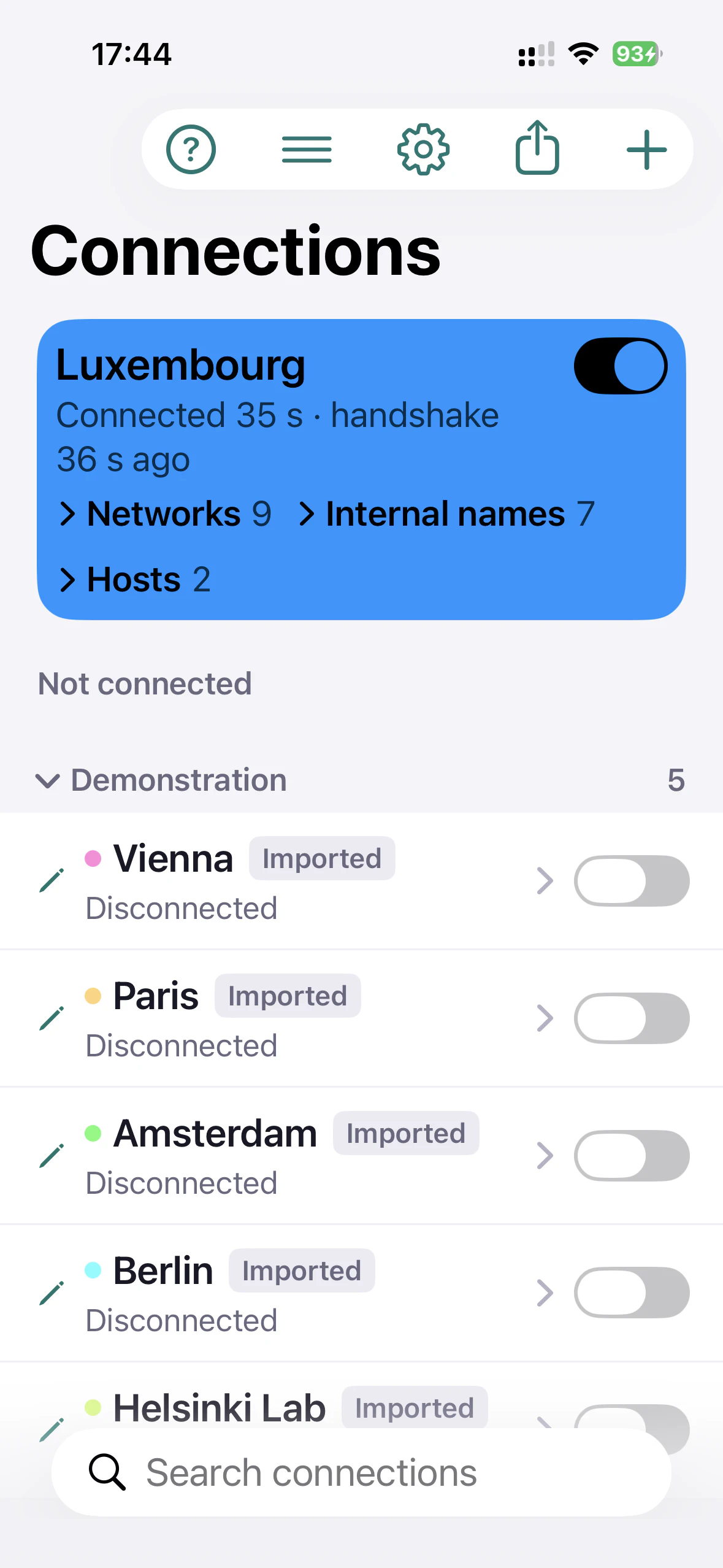
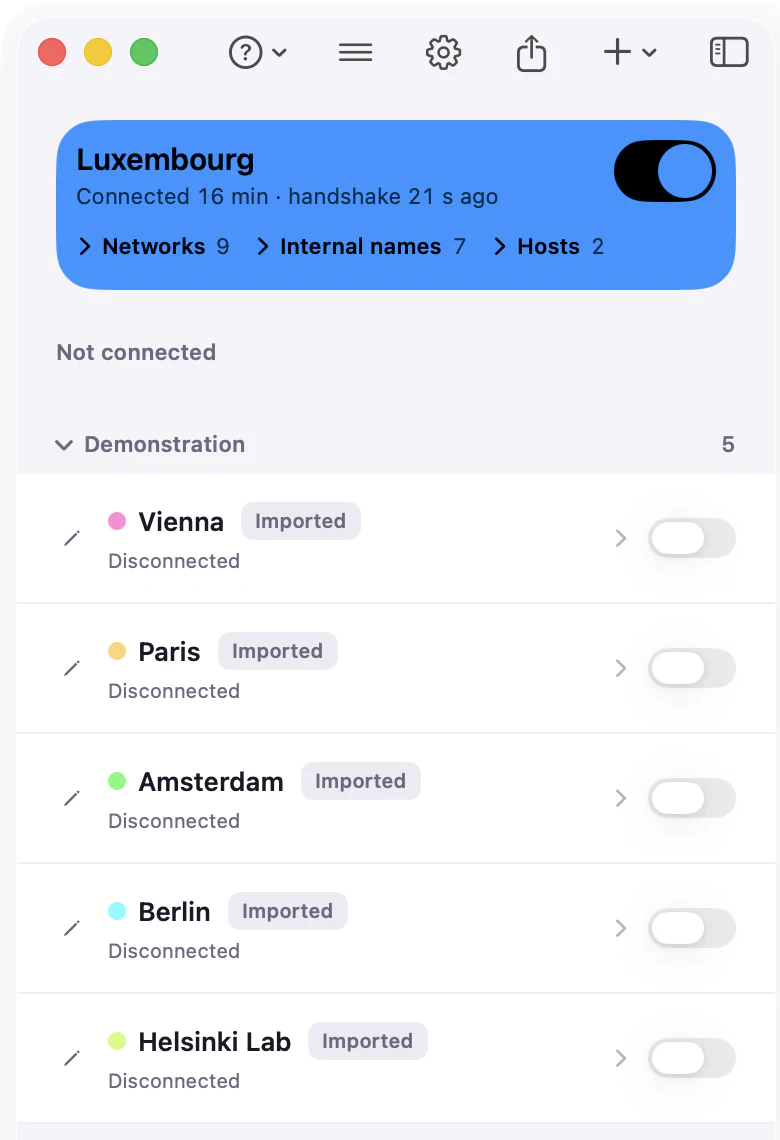
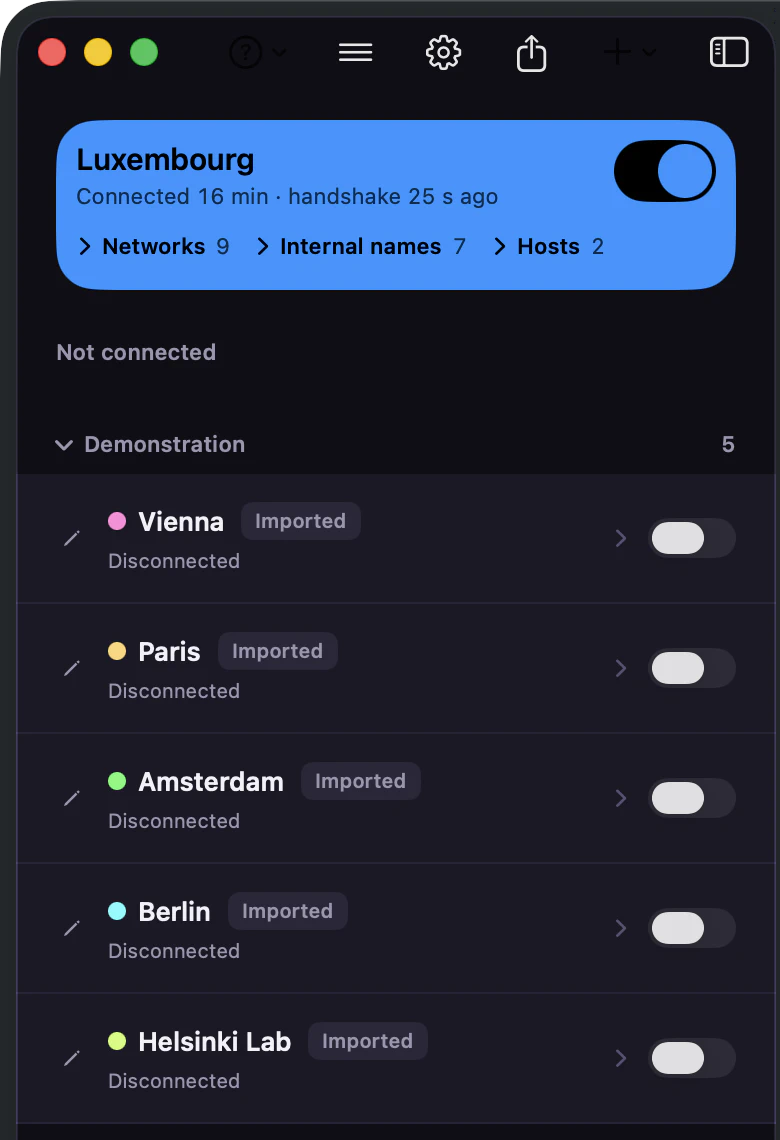
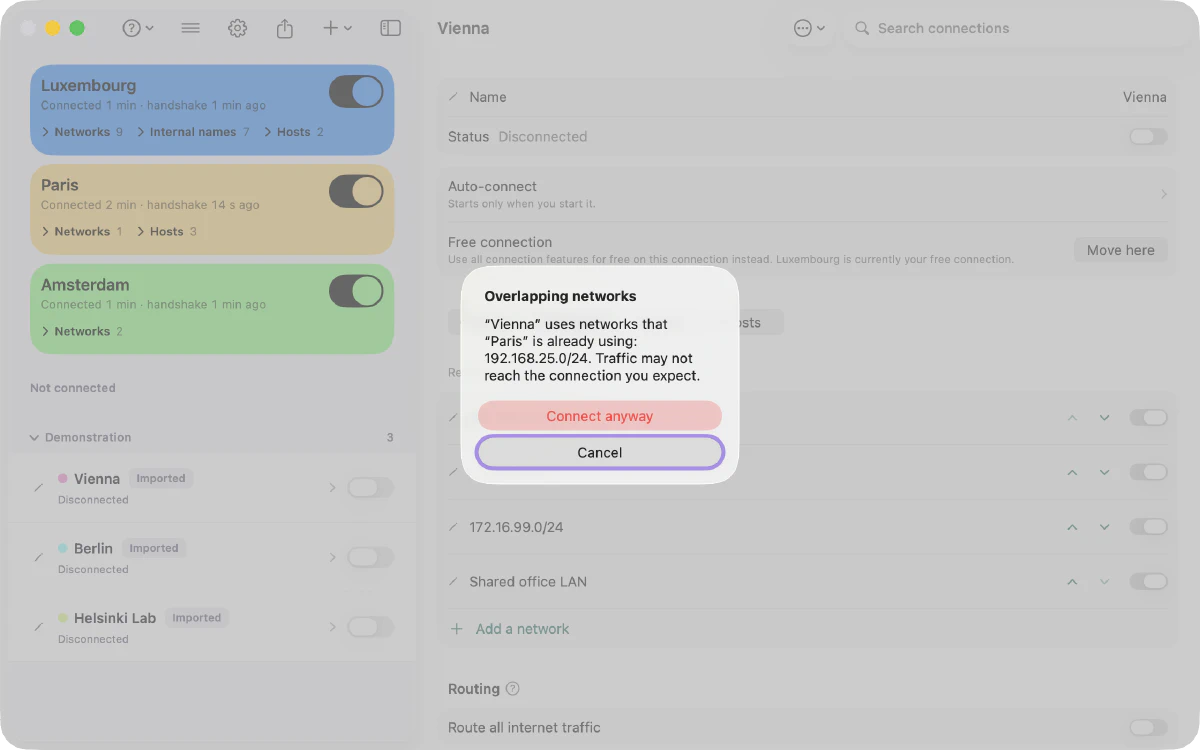
- An active connection’s card folds into one line — “Networks 9 · Internal names 7 · Hosts 2” — and a failed check stays visible while folded.
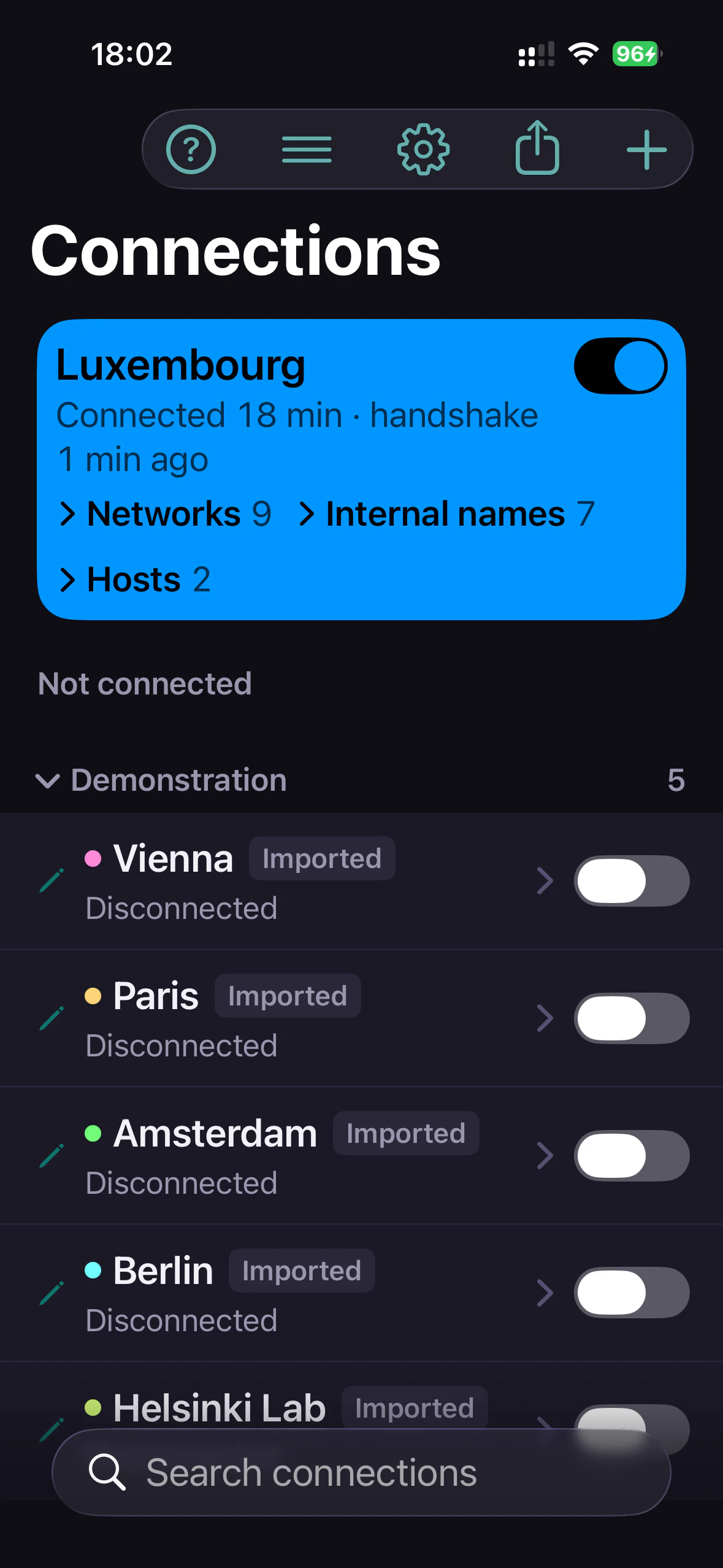
- Clear connection state: connected, and when the last handshake happened.
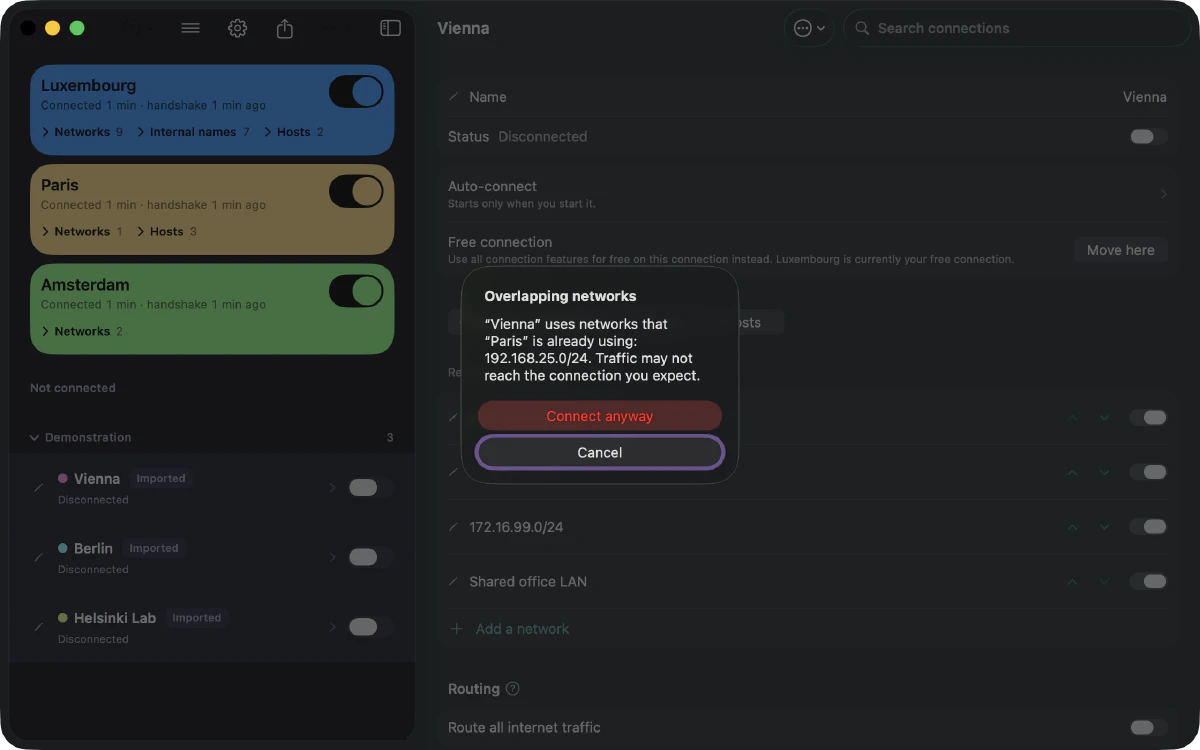
- A notice when Paart observes networks that overlap. It does not guess which route wins.
- Logs for each connection, exportable.
Automate
Let connections come up on their own.
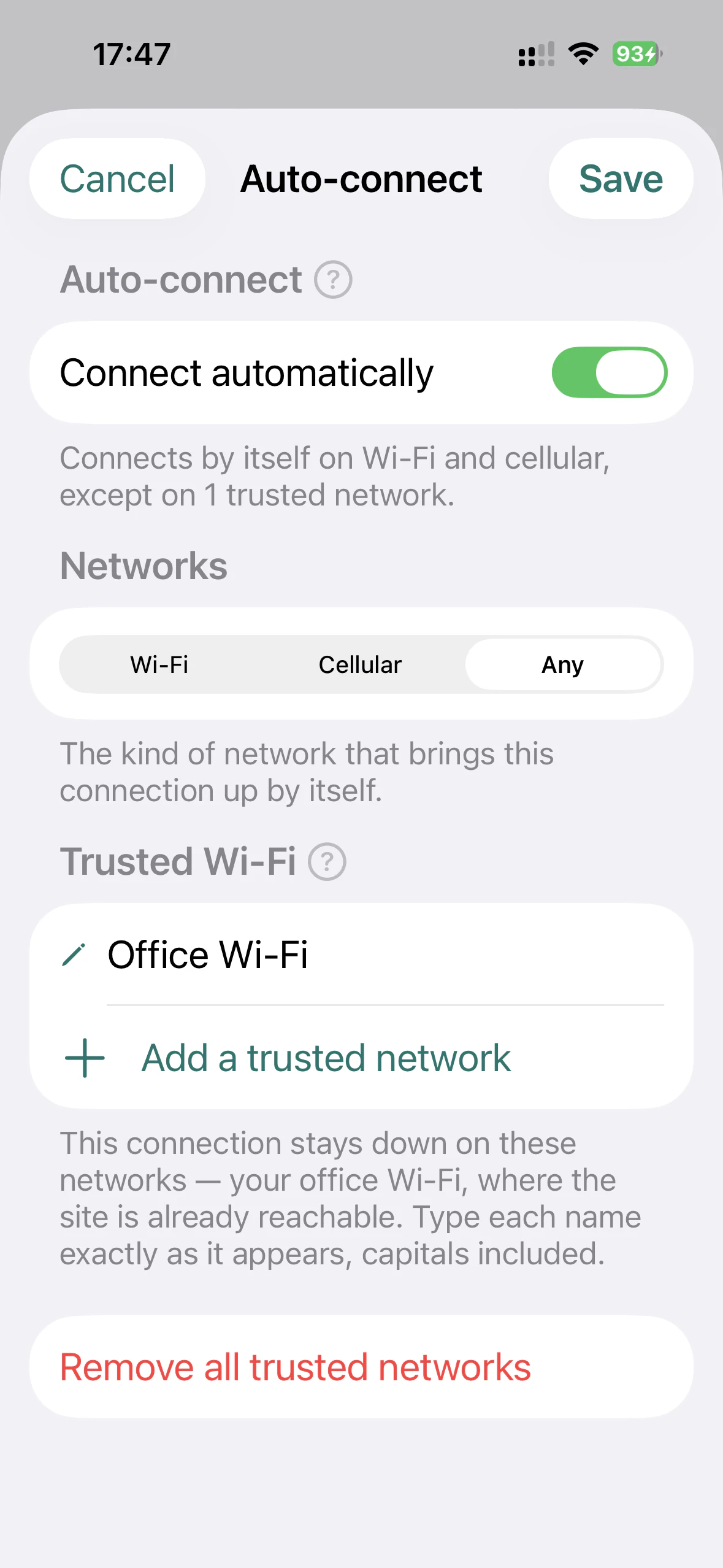
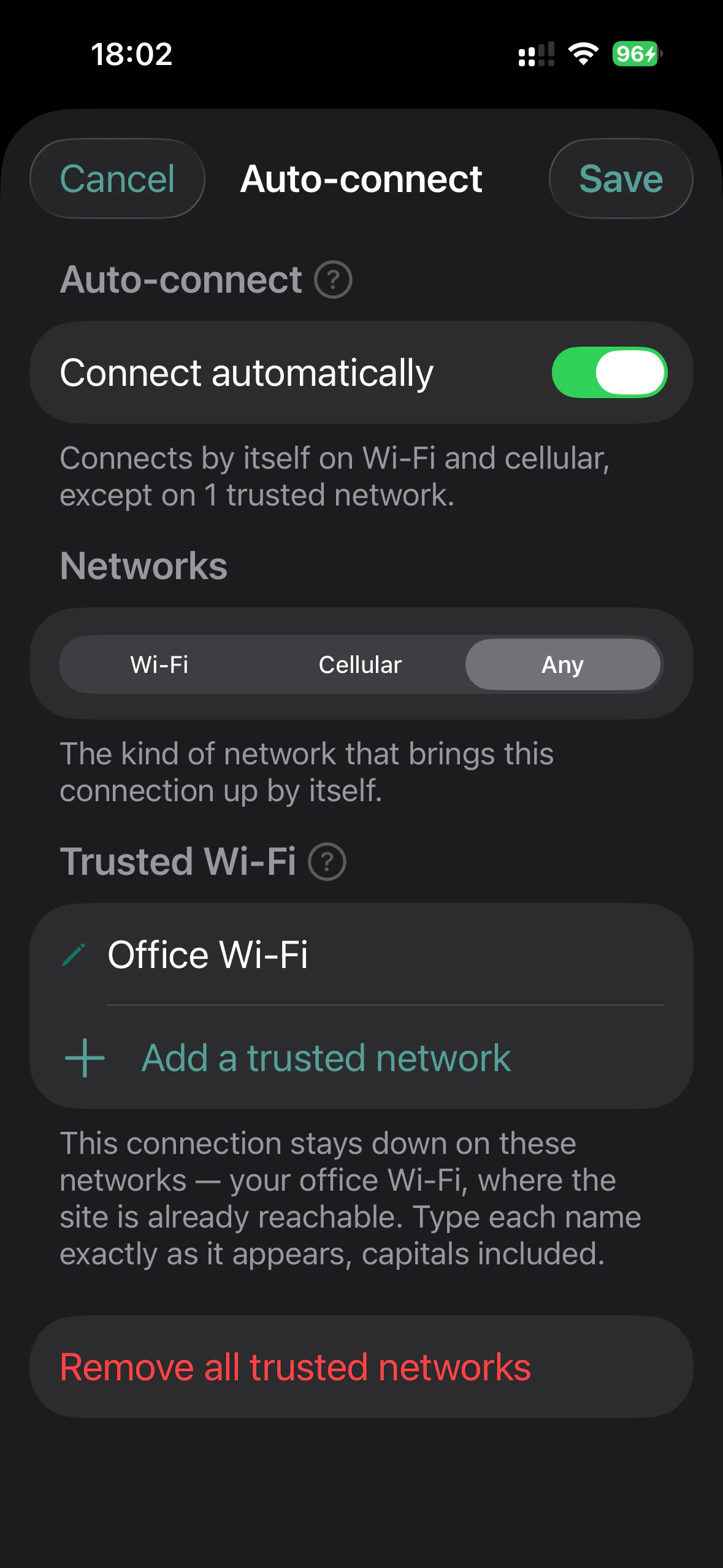
- On-demand rules — on Wi-Fi, on cellular or on any network — for one connection at a time.
- Trusted Wi-Fi: networks where a connection stays down, such as your office.
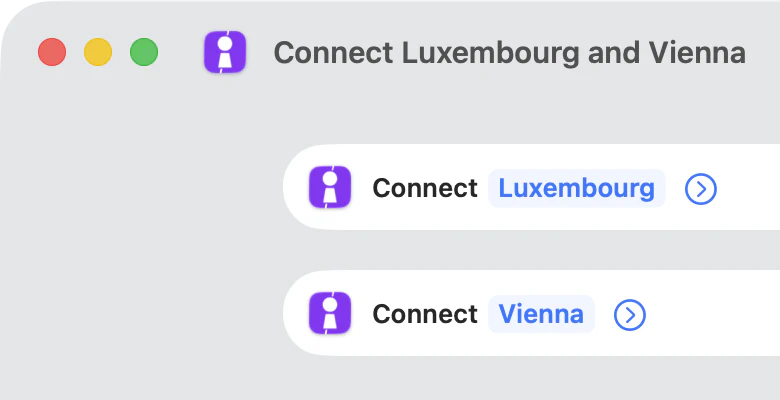
- Paart actions for Shortcuts, usable with Siri: Connect and Disconnect a named connection without bringing Paart to the front. A connection already up is not restarted; Disconnect also stops that connection’s auto-connect.
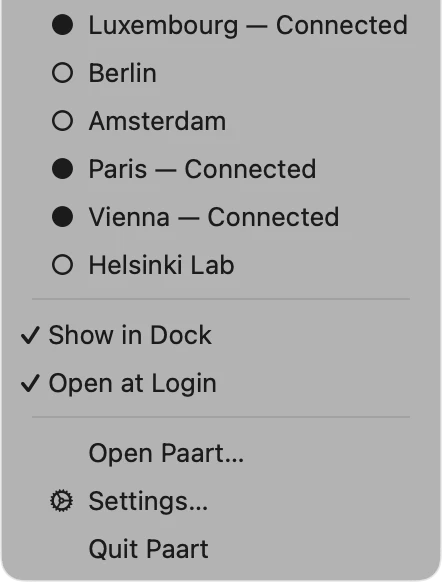
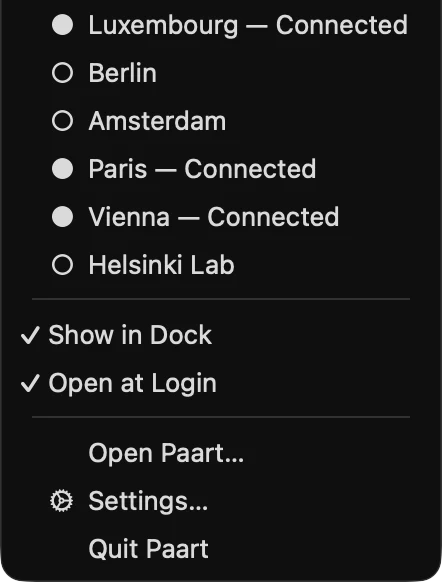
- The Mac menu bar.
Platforms
The same library on every device.
| Feature | Mac | iPhone | iPad |
|---|---|---|---|
| Connections at once | Several* | One | One |
| Internal names (split DNS) | Yes | Yes | Yes |
| Sync — iCloud or SFTP | Yes | Yes | Yes |
| Menu bar | Yes | — | — |
* Several connections at once on Mac requires routes that can coexist; that is how current macOS behaves, not something Apple guarantees. Paart reports overlaps it observes; it does not decide which route wins.
Privacy
Nothing of yours passes through us.
- No Paart account.
- No Paart VPN server: tunnels go straight to your own endpoints.
- Keys stay on your devices. No telemetry, crash reporting, advertising identifiers or trackers.
- Sync is end-to-end encrypted with your passphrase; iCloud or your SFTP server stores an opaque payload. The SSH key for SFTP never leaves the device.
Free & Pro
Advanced networking on one connection, free. On all of them, with Pro.
| What you get | Free | Paart Pro |
|---|---|---|
| Import WireGuard configurations | Unlimited | Unlimited |
| Active connections at once | Mac (current macOS): several, when routes can coexist · iPhone, iPad: one | Same |
| Advanced networking — networks, named hosts, DNS (internal names included) and full-tunnel routing | On one connection you choose, switchable anytime | On every connection |
| Sync across your devices — iCloud or SFTP | While you have a single connection — can run again once you’re back to one | For every connection |
| Resource checks | On hosts you add to your Free connection — hosts already there keep being checked | On every connection |
| Kill switch | On every connection | On every connection |
| Platforms | Mac, iPhone and iPad | One purchase covers Mac, iPhone and iPad |
| Price | €0 | €49.99 once · Or €24.99 / year · €3.99 / month |
Sync is free while you have a single connection. Add a second and sync pauses: what’s already synced stays where it is, and sync can run again once you’re back to one connection — or right away with Pro. Either way, it runs when you press “Synchronise Now”.
Subscriptions renew automatically unless you cancel at least 24 hours before the period ends. Your Apple Account is charged within 24 hours before renewal. You can view, change or cancel a subscription in Settings ▸ your name ▸ Subscriptions. The one-off purchase never renews.
Prices are those of the Luxembourg App Store and include VAT. Apple sets the price in each country: yours may differ.
- Free
- Connect as many configurations as you like. Advanced networking on one connection you choose, switchable anytime. Sync while you have a single connection — it can run again once you’re back to one.
- Paart Pro
- Advanced networking and sync on every connection.
Help
Step-by-step guides
- Adding your first connectionWhat a WireGuard configuration is, and the two ways to get one into Paart.
- Keeping your private key safeThe one line in your configuration that is a credential rather than a setting.
- When the tunnel will not connectA handshake that never completes almost always has one of five causes.
- WireGuard connected but no traffic: troubleshoot LAN access and InternetWireGuard says connected, but your LAN or Internet is unreachable? Check handshake, routes, AllowedIPs, DNS and gateway settings on macOS.
- DNS, routing and split tunnellingDeciding what travels through the tunnel, and who answers your name lookups.
- WireGuard split DNS on macOS: search domains and resolversWhy your Mac sends every name to the WireGuard tunnel, how search domains differ from per-domain resolvers, and how to check what macOS really uses.
- Multiple WireGuard tunnels on macOS: options, routing and DNSCan you run two WireGuard tunnels on a Mac? Compare your options, avoid route and DNS conflicts, and check that both remote networks really work.
- Connecting automaticallyRules that bring the tunnel up on the networks where you want it.
Images: Paart 1.1.0 (1712) on macOS 26 and iOS 26.